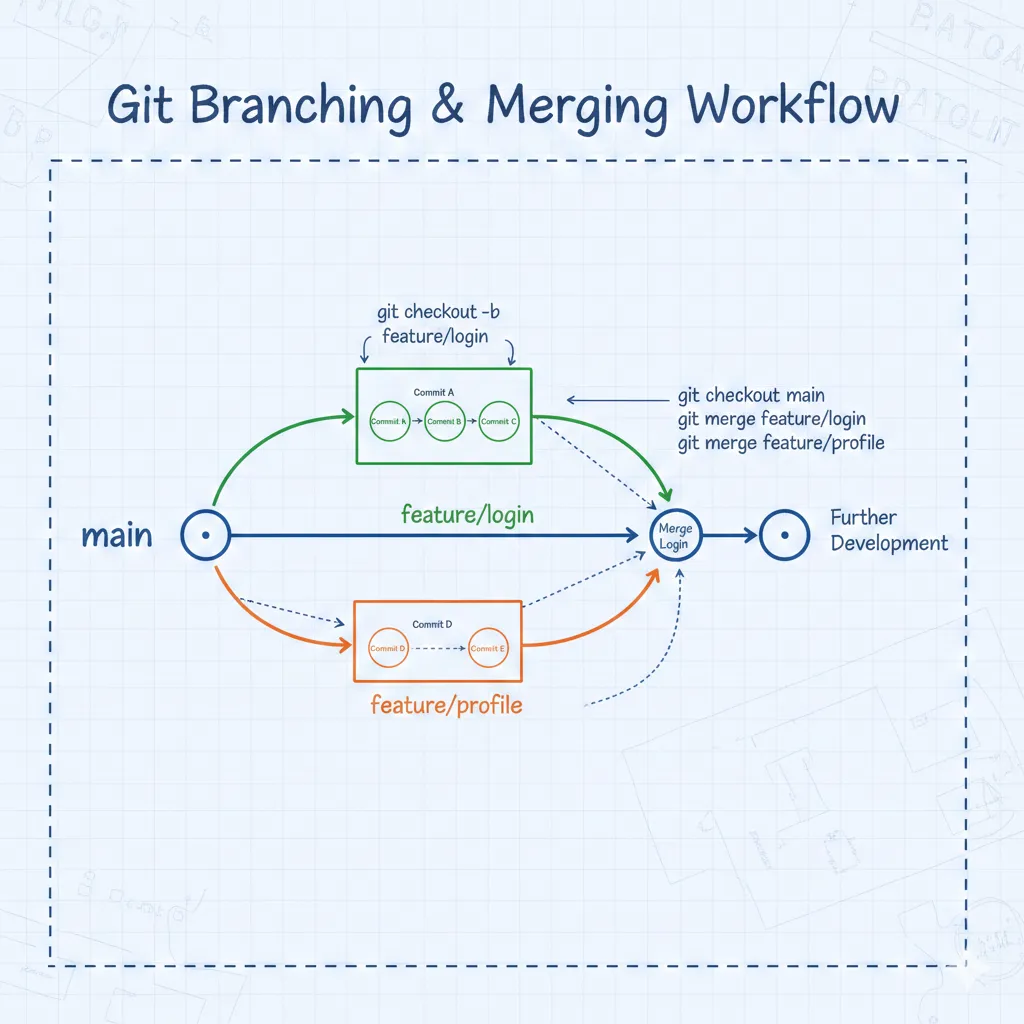
"Git is not just a version control tool. It's the core infrastructure of modern software development and a time machine that enables collaboration among developers."
🌱 Git Fundamentals: Why Git?
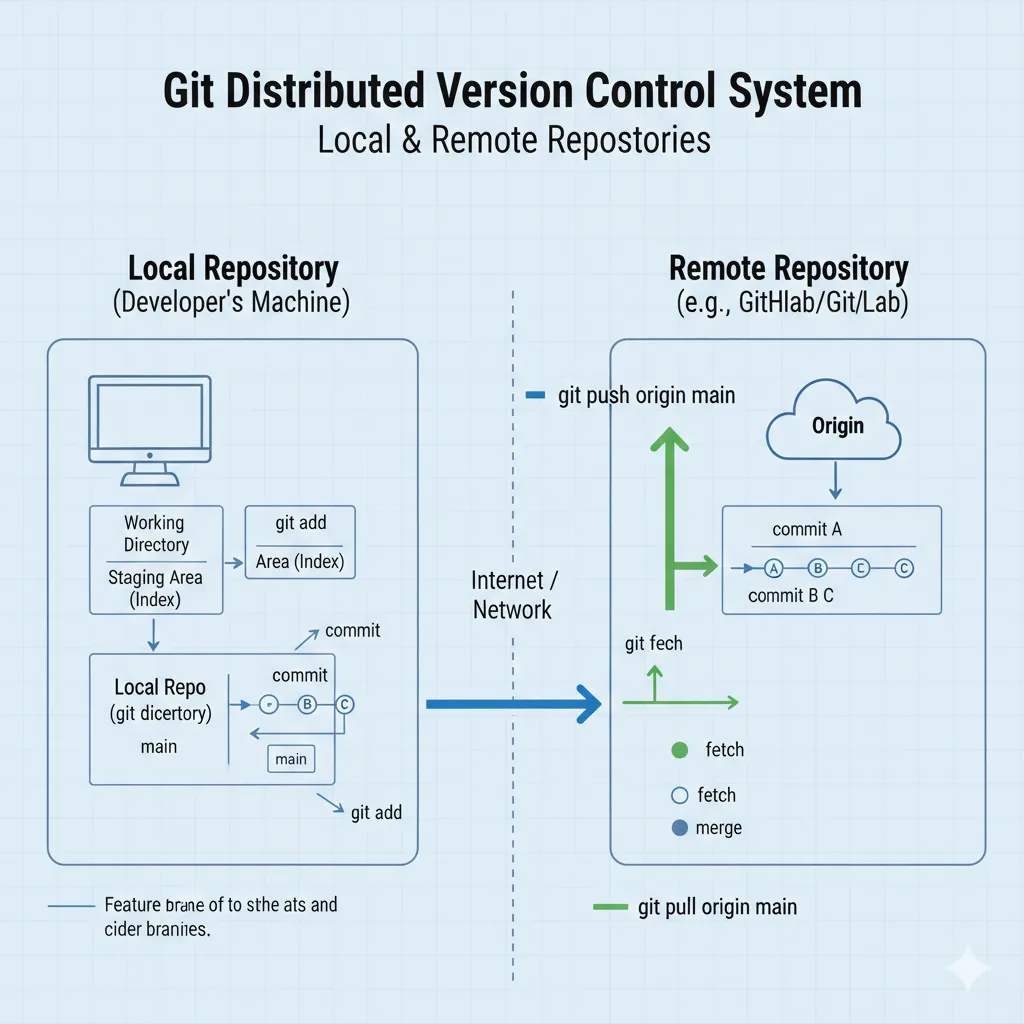
Created by Linus Torvalds in 2005 for Linux kernel development, Git has become the standard version control system used in over 90% of software projects worldwide today. Git's core philosophy is "distributed." By maintaining a complete copy of the repository in each developer's local environment without relying on a central server, it enables offline work and minimizes data loss risks.
The most significant feature that differentiates Git from other version control systems is the lightweight branching. While creating branches was a heavy operation in SVN or CVS, Git allows you to create and switch branches instantly. This is the core technical foundation that enables modern development approaches like "Feature Branch Workflow."
💡 Insights from Reddit Developers
A user from the r/webdev community shared: "The hardest concept when learning Git was the 'Staging Area.' But once I understood it as 'layers in Photoshop,' everything suddenly became clear." Staged files are the "prepared layers" for the next commit.
⚡ Mastering Essential Basic Commands
Git's basic commands may seem like basic conversation in a foreign language. But understanding the intent and philosophy behind each command elevates them from mere memorization to true capability.
Repository Initialization and Configuration
git init & git config
# Initialize new repository
git init

# Configure user info (global)
git config --global user.name "John Doe"
git config --global user.email "john@example.com"

# Set editor
git config --global core.editor "code --wait"  # VS Code
git config --global core.editor "vim"          # Vim

# Verify configuration
git config --list
Pro Tip: Since Git 2.28, you can set the default branch name to main: git config --global init.defaultBranch main
The Three Stages of Change Tracking
Git manages file changes in three stages: Working Directory → Staging Area → Repository. Understanding this flow is the first step to Git mastery.
add, status, diff
# Check changes
git status

# Compare Working Directory vs Staging Area
git diff

# Compare Staging Area vs Repository
git diff --staged
git diff --cached  # Same command

# Add files to Staging Area
git add filename.txt          # Specific file
git add .                     # All changes
git add -p                    # Patch mode (select hunks)

# Remove from Staging Area (Unstage)
git restore --staged filename.txt
git reset HEAD filename.txt   # Old syntax
commit - Saving Changes
# Basic commit
git commit -m "feat: add user authentication feature"

# Commit with detailed message
git commit -m "feat: add user authentication feature" \
           -m "- Implement JWT token-based authentication
                - Add login/logout APIs
                - Apply password hashing"

# Commit all tracked files (add + commit)
git commit -am "fix: bug fix"

# Amend last commit
git commit --amend -m "Amended commit message"
git commit --amend --no-edit  # Add files without editing message
Conventional Commits: As of 2025, using prefixes like feat:, fix:, docs:, style:, refactor:, test:, chore: is standard in team projects. This is essential for automated changelog generation and semantic versioning.
Remote Repository Synchronization
remote, push, pull, fetch
# Manage remote repositories
git remote -v                          # List remotes
git remote add origin https://github.com/user/repo.git
git remote remove origin
git remote rename origin upstream

# Upload code
git push origin main
git push -u origin main               # Push with upstream setting
git push origin feature-branch        # Push specific branch

# Download code
git pull origin main                  # fetch + merge
git pull --rebase origin main         # fetch + rebase (recommended)

# Safe download (without merging)
git fetch origin
git fetch --all --prune               # Sync all remotes

# Fetch specific commit only
git cherry-pick abc1234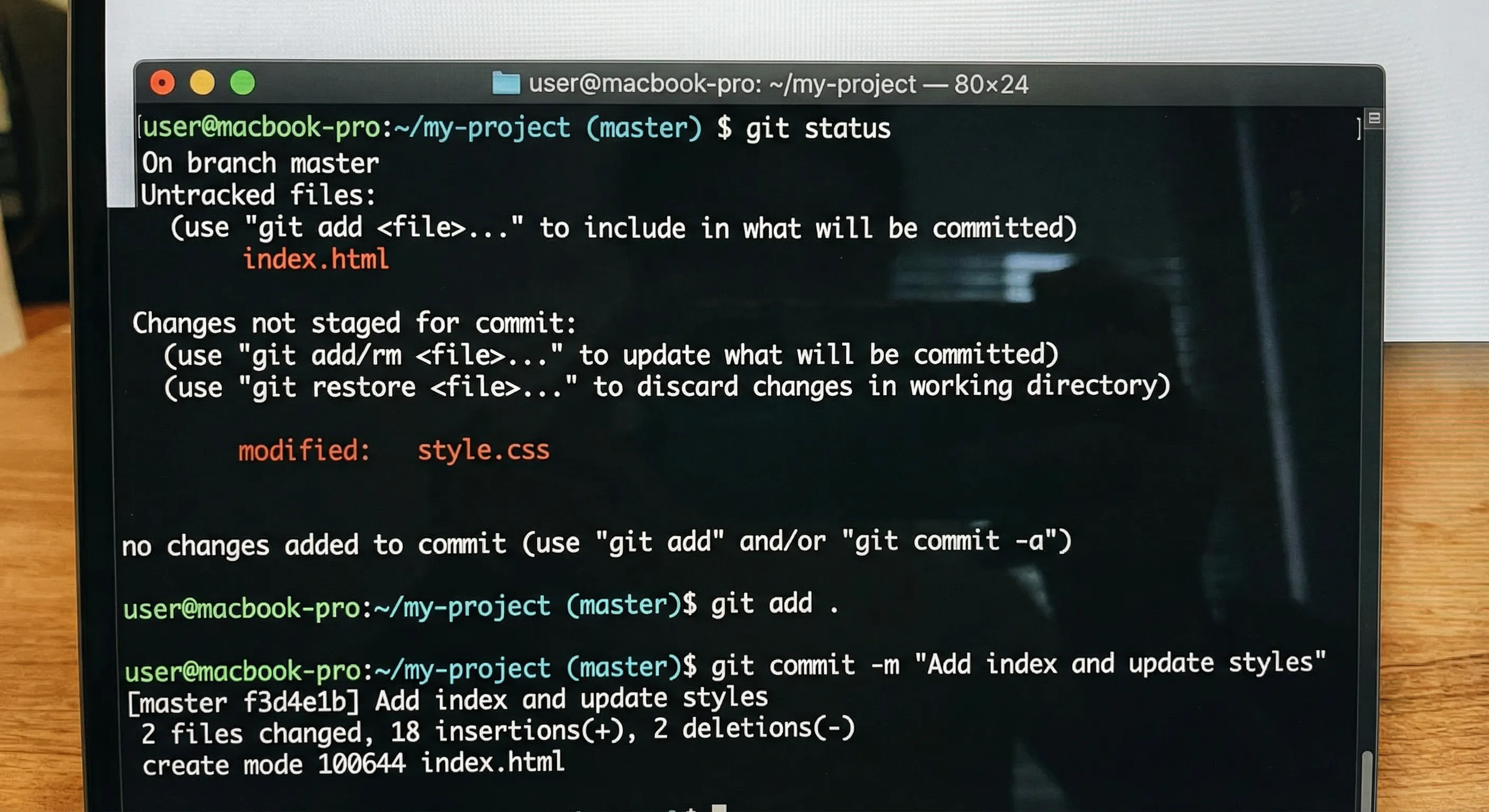
🌿 Branching Strategies and Workflows
Branches are the flower of Git. They enable the entire process of developing features in isolated environments and safely integrating them through code review. As of 2025, GitHub Flow and GitLab Flow are the most widely used strategies.
Basic Branch Commands
branch, checkout, switch
# List branches
git branch                          # Local branches
git branch -r                       # Remote branches
git branch -a                       # All branches
git branch -vv                      # With upstream info

# Create branch
git branch feature-login            # Create only
git checkout -b feature-login       # Create + switch (old syntax)
git switch -c feature-login         # Create + switch (new syntax, Git 2.23+)

# Switch branches
git checkout main                   # Old syntax
git switch main                     # New syntax (clearer)

# Delete branches
git branch -d feature-login         # Delete merged branch
git branch -D feature-login         # Force delete (ignore merge status)

# Rename branch
git branch -m old-name new-name
Popular Branch Strategy Comparison
| Strategy | Features | Best For | Difficulty |
|---|---|---|---|
| Git Flow | main, develop, feature, release, hotfix branches | Large projects requiring version management | ⭐⭐⭐ |
| GitHub Flow | Simple main + feature branch structure | Continuous Deployment (CD) environments | ⭐ |
| GitLab Flow | Environment-specific branches (production, staging) | Teams with multiple deployment environments | ⭐⭐ |
| Trunk-Based | Direct commits to main, short-lived feature branches | Highly automated large-scale teams | ⭐⭐⭐⭐ |
🎯 Advice from GitHub Community
A developer on GitHub Discussion argued that "Git Flow is a legacy of the past, and modern development is better suited to GitHub Flow or Trunk-Based Development." They particularly emphasized the rule "keep feature branch lifetime under one day," warning that long-lived branches become minefields for merge conflicts.
Complete Pull Request Workflow
Sync Latest Code
git pull origin main
Always fetch the latest main before creating a branch to prevent conflicts.
Create Feature Branch
git switch -c feature/user-auth
Create branches with clear naming conventions.
Develop and Commit
git add . && git commit -m "feat: implement user authentication"
Commit frequently in meaningful units.
Push to Remote
git push -u origin feature/user-auth
Publish your branch to the remote repository.
Create Pull Request
Create a PR on GitHub/GitLab and request code review.
Merge After Review
Perform squash merge or rebase merge after approval.
🔀 Advanced Commands: Rebase vs Merge Deep Dive
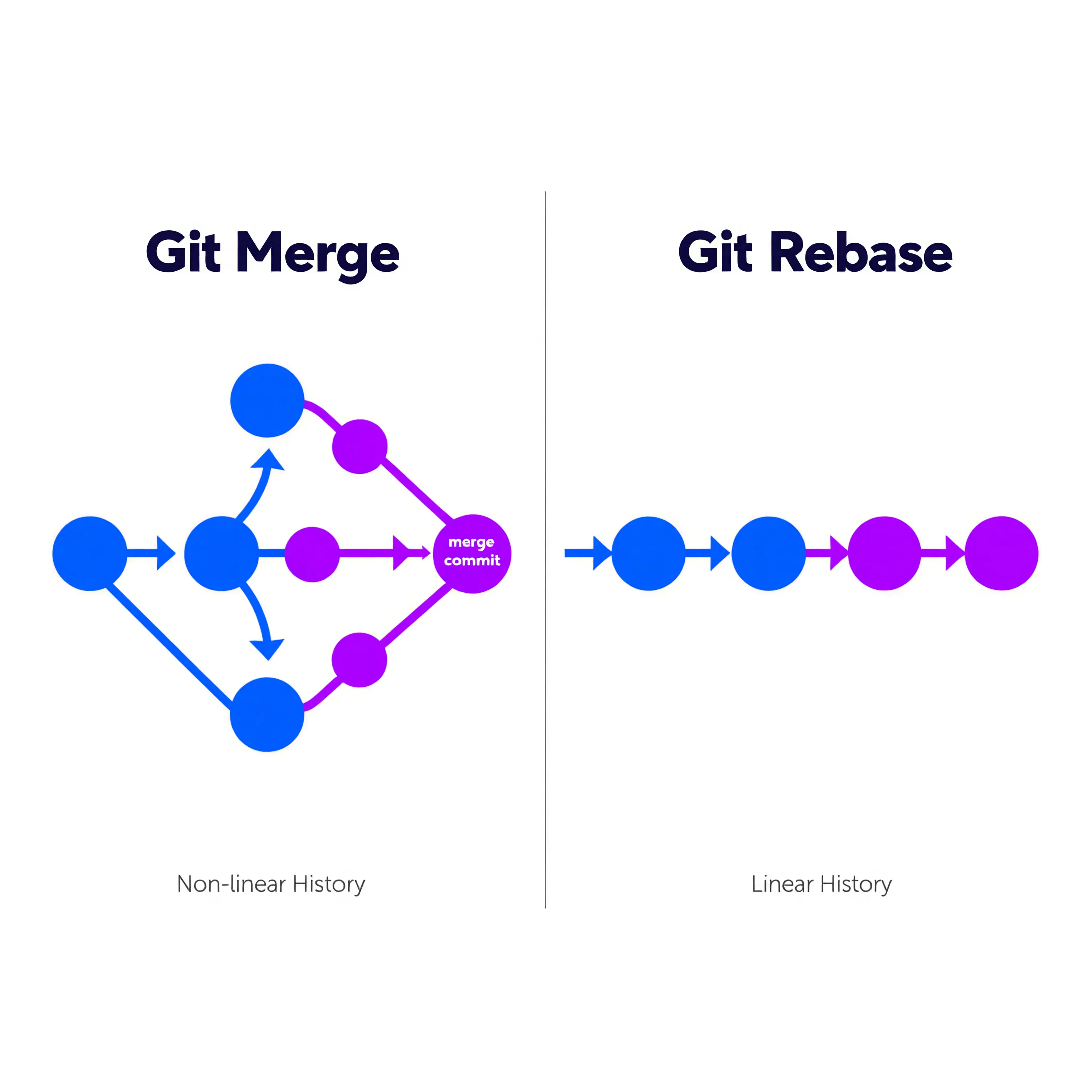
One of the most heated debates among Git users is "to rebase or to merge." This choice reflects a team's code history philosophy, and each has clear pros and cons.
Merge: Safe Integration
Merge preserves the history of both branches while integrating them. Non-fast-forward merge creates an explicit merge commit that records "when and which feature was integrated."
merge commands
# Basic merge (performs fast-forward if possible)
git merge feature-branch

# Force non-fast-forward (creates merge commit)
git merge --no-ff feature-branch

# Abort merge
git merge --abort

# Merge with specific strategy
git merge -X ours feature-branch    # Prefer current branch on conflict
git merge -X theirs feature-branch  # Prefer target branch on conflict
Rebase: Clean History
Rebase "repositions the commits of the current branch on top of the target branch." This results in a linear history that makes git log easier to read.
rebase commands
# Rebase current branch onto main
git rebase main

# Interactive rebase (powerful!)
git rebase -i HEAD~5

# Continue rebase after resolving conflicts
git rebase --continue

# Abort rebase (restore original state)
git rebase --abort

# Rebase onto specific commit
git rebase --onto newbase oldbase branch
Interactive Rebase: The Swiss Army Knife of Commit History
git rebase -i is one of Git's most powerful features. You can reorder commits, squash, split, and edit messages.
# Edit last 5 commits
git rebase -i HEAD~5

# Options that appear:
# p, pick = use commit (use as-is)
# r, reword = use commit, but edit the commit message (edit message)
# e, edit = use commit, but stop for amending (stop for editing)
# s, squash = use commit, but meld into previous commit (combine with previous)
# f, fixup = like "squash", but discard this commit's log message (combine without message)
# x, exec = run command (the rest of the line) using shell (execute command)
# d, drop = remove commit (delete commit)| Situation | Recommended Method | Reason |
|---|---|---|
| Cleaning local feature branch | git rebase -i |
Maintain clean commit history |
| Updating shared branch | git merge |
Avoid history rewriting risks |
| Integrating feature into main | PR Merge (Squash or Merge) | Follow team policy |
| Applying hotfix | git cherry-pick |
Selectively apply specific commits |
⚠️ Debate on Hacker News
One Hacker News user shared a cautionary tale: "I lost a month's work using rebase." They emphasized "only use rebase on local branches, and only before push." Another user argued for rebase's usefulness, stating that "accumulating merge commits makes git bisect difficult."
🛠️ Stash, Cherry-pick, Reflog in Practice
Experienced Git users don't panic in crisis situations. They stash work temporarily, cherry-pick only the commits they need, and recover mistakes with reflog.
Git Stash: The Magic of Temporary Storage
When you need to set aside current work for an urgent bug fix, Stash is the perfect solution. It safely stores working directory changes for later recovery.
stash command collection
# Stash current changes
git stash
git stash push -m "WIP: implementing login feature"

# List stashes
git stash list
# stash@{0}: On main: WIP: implementing login feature
# stash@{1}: On feature-branch: temporary modifications

# Apply stash (without removing from list)
git stash apply
git stash apply stash@{1}

# Apply and remove stash (pop)
git stash pop
git stash pop stash@{0}

# Stash specific files only
git stash push -m "partial stash" path/to/file.txt

# Include untracked files
git stash push -u -m "including untracked"
git stash push --all  # Include ignored files too

# Extract specific file from stash
git checkout stash@{0} -- filename.txt

# Drop stash
git stash drop stash@{1}

# Clear all stashes
git stash clear

# Convert stash to new branch
git stash branch new-branch-name stash@{0}
💡 Advanced Stash Usage
git stash push -p (or --patch) enters interactive mode, allowing you to selectively stash only parts of your changes. Useful when you want to stash feature code but remove debug code.
Cherry-pick: Harvesting Commits
When you need specific commits from another branch, you can "pick" them without a full merge.
cherry-pick usage
# Single commit cherry-pick
git cherry-pick abc1234

# Multiple commits cherry-pick
git cherry-pick abc1234 def5678

# Range cherry-pick (older..newer)
git cherry-pick abc1234^..def5678

# Cherry-pick merge commit
git cherry-pick -m 1 abc1234

# Apply commit content only (without creating commit)
git cherry-pick -n abc1234

# During cherry-pick conflict
git cherry-pick --continue
git cherry-pick --abort
git cherry-pick --skip
Reflog: Git's Time Machine
git reflog is Git's "safety net." It can recover commits lost to git reset --hard, deleted branches, and even botched rebases.
Recover everything with reflog
# Check reflog
git reflog
git reflog --date=relative  # Show relative time

# Recover to specific point
git reset --hard HEAD@{2}
git reset --hard abc1234

# Recover deleted branch
git reflog | grep "checkout: moving from"
git branch recovered-branch HEAD@{5}

# Use ORIG_HEAD (before last dangerous operation)
git reset --hard ORIG_HEAD

# Specific branch reflog
git reflog show feature-branch

# Find unreachable objects
git fsck --unreachable --no-reflogs | grep commit
🚨 Actual Recovery Scenario
A developer lost 3 days of work with git reset --hard HEAD~3. But they found the commit hash before the reset in git reflog and perfectly recovered with git reset --hard HEAD@{1}. Reflog is maintained locally for 90 days, so there's plenty of time even after mistakes.
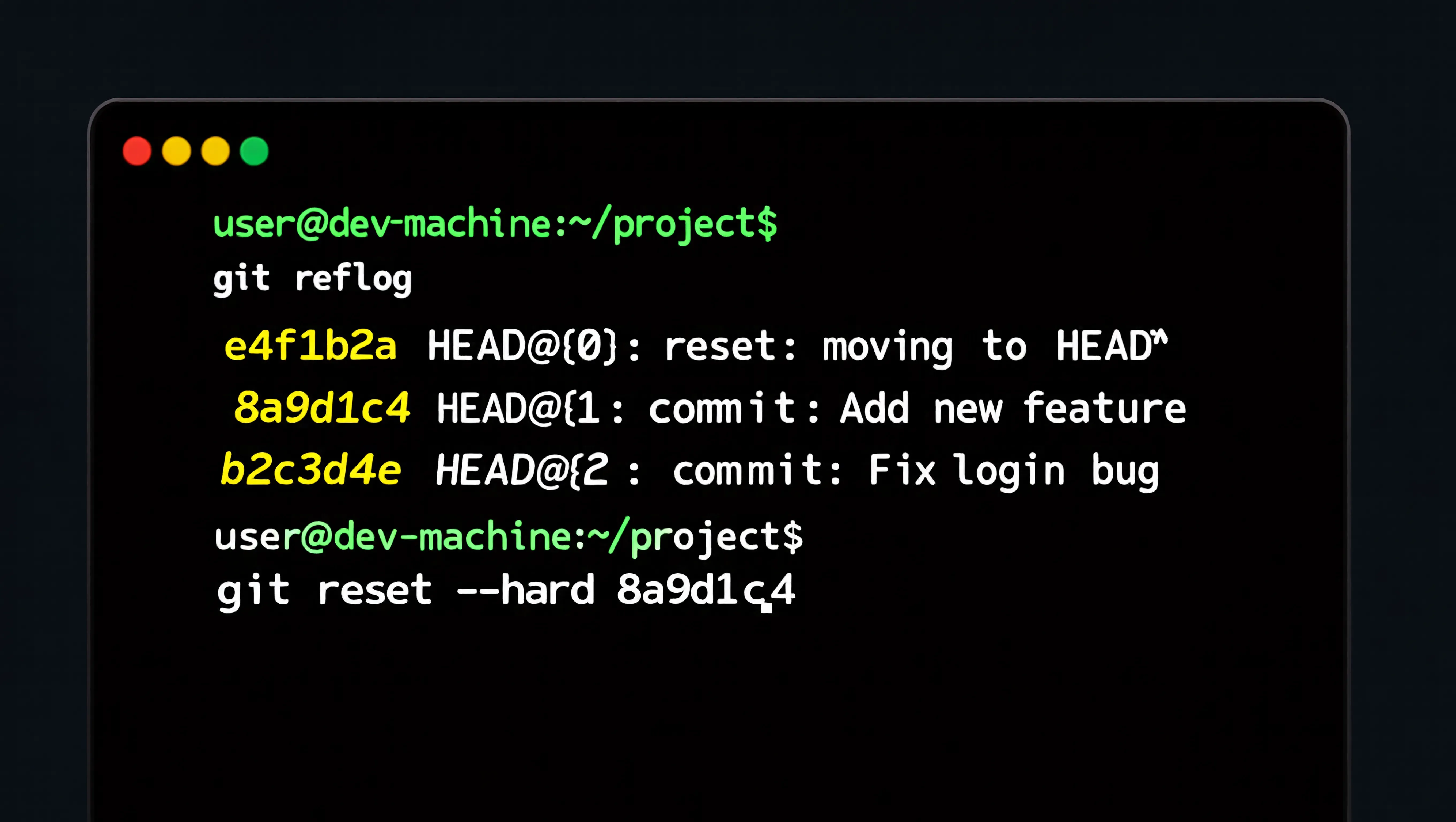
Key Points: Git Mistake Recovery Checklist
- When you make a mistake: Don't panic, check
git reflog - When pausing work: Safely store with
git stash - When you need specific commits: Selectively apply with
git cherry-pick - Before recovery: Backup current state with
git branch backup
🤖 Automation with Git Hooks
Git Hooks are scripts that automatically run when specific Git events occur. They automate code quality checks, test execution, and commit message validation to prevent human error.
Main Git Hooks Types
| Hook | Trigger Timing | Use Case |
|---|---|---|
pre-commit |
Before commit creation | Linting, formatting, simple tests |
prepare-commit-msg |
Before editor opens for commit message | Insert default message template |
commit-msg |
After commit message is saved | Validate commit message rules |
post-commit |
After commit is created | Notifications, logging |
pre-push |
Before push | Full test suite, build verification |
post-merge |
After merge completes | Install dependencies |
Practical Hook Examples
pre-commit: ESLint + Prettier
#!/bin/bash
# .git/hooks/pre-commit

echo "🔍 Running pre-commit checks..."

# Staged files list
STAGED_FILES=$(git diff --cached --name-only --diff-filter=ACM | grep -E '\.(js|jsx|ts|tsx)$')

if [ -n "$STAGED_FILES" ]; then
    echo "Running ESLint..."
    npx eslint $STAGED_FILES --fix

    if [ $? -ne 0 ]; then
        echo "❌ ESLint failed. Commit aborted."
        exit 1
    fi

    # Re-stage modified files
    echo "$STAGED_FILES" | xargs git add
fi

# Check for debug code
if git diff --cached | grep -E "console\.log|debugger|TODO|FIXME"; then
    echo "⚠️ Warning: Debug code or TODOs found in staged changes"
    # exit 1  # Uncomment to force block
fi

echo "✅ Pre-commit checks passed!"
exit 0
commit-msg: Conventional Commits Validation
#!/bin/bash
# .git/hooks/commit-msg

COMMIT_MSG_FILE=$1
COMMIT_MSG=$(cat "$COMMIT_MSG_FILE")

# Check Conventional Commits pattern
PATTERN="^(feat|fix|docs|style|refactor|test|chore|ci|build|perf)(\(.+\))?: .{1,100}"

if ! echo "$COMMIT_MSG" | grep -qE "$PATTERN"; then
    echo "❌ Invalid commit message format!"
    echo ""
    echo "Expected format: (): "
    echo ""
    echo "Types: feat, fix, docs, style, refactor, test, chore, ci, build, perf"
    echo "Example: feat(auth): add JWT token validation"
    echo ""
    exit 1
fi

echo "✅ Commit message format valid!"
exit 0
Modern Setup with Husky + lint-staged
As of 2025, the combination of Husky and lint-staged is the most widely used hook management approach.
// package.json
{
  "husky": {
    "hooks": {
      "pre-commit": "lint-staged",
      "commit-msg": "commitlint -E HUSKY_GIT_PARAMS"
    }
  },
  "lint-staged": {
    "*.{js,jsx,ts,tsx}": [
      "eslint --fix",
      "prettier --write",
      "git add"
    ],
    "*.{json,md}": [
      "prettier --write",
      "git add"
    ]
  }
}
🌳 Git Worktree and Sparse Checkout
For large projects or when working on multiple branches simultaneously, Git Worktree and Sparse Checkout are powerful tools that maximize productivity.
Git Worktree: Multiple Branch Checkouts
Previously, you could only work on one branch per repository. With Worktree, you can work on different branches in multiple directories simultaneously.
worktree commands
# Create new worktree (auto-creates branch)
git worktree add ../project-feature feature-branch

# Existing branch to worktree
git worktree add ../project-hotfix hotfix-branch

# List worktrees
git worktree list

# Remove worktree
git worktree remove ../project-feature

# Remove unpruned worktrees
git worktree prune

# Create worktree with detached HEAD
git worktree add --detach ../project-temp

# Move to main worktree
cd $(git rev-parse --show-toplevel)
🚀 AI Coding Agents and Worktree
A tip recently trending on Reddit r/webdev was that "efficiency is maximized when combining AI coding agents (Claude Code, Cursor, etc.) with Worktree." By allocating separate worktrees to each AI session, you can completely separate contexts and work cleanly without stash conflicts or WIP commits.
Sparse Checkout: Efficient Large Repository Management
In monorepos, you can selectively checkout only the directories you need without cloning the entire repository.
sparse-checkout setup
# Enable sparse checkout
git sparse-checkout init

# Set included directories
git sparse-checkout set frontend/app
git sparse-checkout set frontend/app backend/api

# Add multiple patterns
git sparse-checkout add shared/utils
git sparse-checkout add docs/

# Check current settings
git sparse-checkout list

# Disable (full checkout)
git sparse-checkout disable

# cone mode (better performance)
git sparse-checkout init --cone
git sparse-checkout set frontend backend
Combined with Partial Clone
# Clone without blobs (very fast)
git clone --filter=blob:none --no-checkout https://github.com/large/repo.git

# Use with sparse checkout
cd repo
git sparse-checkout init --cone
git sparse-checkout set frontend/app
git checkout main
📦 Managing Large Files with Git LFS
Git is optimized for version control of text files. Storing binary files over 100MB (images, videos, datasets) directly bloats the repository and slows down clone/pull operations. Git LFS (Large File Storage) elegantly solves this problem.
How Git LFS Works
Git LFS stores "pointer files" in the repository instead of actual files, keeping the actual file contents on a separate LFS server. Only pointers are received during clone, with actual files downloaded when needed.
LFS Installation and Setup
# macOS
brew install git-lfs
git lfs install

# Ubuntu/Debian
curl -s https://packagecloud.io/install/repositories/github/git-lfs/script.deb.sh | sudo bash
sudo apt-get install git-lfs
git lfs install

# Windows
winget install GitHub.GitLFS
git lfs install

# Per-repository setup
git lfs install --local
Tracking Files with LFS
# Track file patterns
git lfs track "*.psd"
git lfs track "*.zip"
git lfs track "*.mp4"
git lfs track "assets/videos/**"
git lfs track "data/*.csv"

# .gitattributes is auto-generated
cat .gitattributes
# *.psd filter=lfs diff=lfs merge=lfs -text

# Must commit .gitattributes
git add .gitattributes
git commit -m "Configure Git LFS"

# Add large files
git add design/mockup.psd
git commit -m "Add mockup design"
git push
LFS Management Commands
# List LFS files
git lfs ls-files
git lfs ls-files -s  # With sizes

# Fetch LFS objects
git lfs fetch
git lfs fetch --all  # All branches
git lfs pull         # fetch + checkout

# Fetch excluding specific files
git lfs fetch --exclude="*.psd"

# Check LFS status
git lfs status
git lfs env

# Migrate existing files to LFS
git lfs migrate import --include="*.zip"
git lfs migrate import --above=10MB  # Only files above 10MB

# Rewrite entire history (caution!)
git lfs migrate import --include="*.zip" --everything
# Force push required afterward
⚠️ Important Notes
GitHub provides 5GB per LFS file and 2GB free storage per repository. Costs apply for excess usage, so managing small images under 100KB with regular Git is more efficient. Also, LFS requires support from hosting services like GitHub, GitLab, and Bitbucket.
🔐 Commit Signing and Security
Commit forgery is a serious security threat in open-source projects. You can prove "this commit is really from me" by signing commits with GPG or SSH keys.
Commit Signing with SSH Keys (Recommended)
Since Git 2.34, commit signing with SSH keys is possible. It's simpler to set up than GPG, and if you already have SSH keys, no additional key generation is needed.
SSH Signing Setup
# Generate SSH key (Ed25519 recommended)
ssh-keygen -t ed25519 -C "your@email.com" -f ~/.ssh/git_signing_key

# Git configuration
git config --global gpg.format ssh
git config --global user.signingkey ~/.ssh/git_signing_key.pub
git config --global commit.gpgsign true  # Auto-sign all commits

# Or for specific repository only
git config commit.gpgsign true

# Setup allowed_signers file (for signature verification)
echo "$(git config user.email) namespaces=\"git\" $(cat ~/.ssh/git_signing_key.pub)" > ~/.ssh/allowed_signers
git config --global gpg.ssh.allowedSignersFile ~/.ssh/allowed_signers
GPG Signing (Traditional Method)
# Generate GPG key
gpg --full-generate-key

# Check key ID
gpg --list-secret-keys --keyid-format LONG

# Git configuration
git config --global user.signingkey YOUR_KEY_ID
git config --global commit.gpgsign true

# Sign specific commit only
git commit -S -m "feat: important feature"

# Push signed commit
git push

# Verify signature
git log --show-signature -1
🔍 Signature Verification on GitHub
Signed commits display a "Verified" badge on GitHub. You must register your public key in Settings → SSH and GPG keys. For SSH signing, select "Signing key" as the Key type.
⚡ Productivity-Boosting Git Aliases
Registering frequently used long commands as short aliases can significantly reduce typing time. Teams often develop their own alias cultures, making this an area where developers express their individuality.
Essential Aliases Collection
Recommended .gitconfig Setup
# ~/.gitconfig
[alias]
    # Basic shortcuts
    st = status
    co = checkout
    sw = switch
    br = branch
    ci = commit
    cm = commit -m

    # Powerful shortcuts
    amend = commit --amend --no-edit
    unstage = restore --staged
    last = log -1 HEAD
    visual = !gitk

    # Pretty logs
    lg = log --color --graph --pretty=format:'%Cred%h%Creset -%C(yellow)%d%Creset %s %Cgreen(%cr) %C(bold blue)<%an>%Creset' --abbrev-commit
    lol = log --graph --decorate --oneline --all

    # Add + commit + push at once
    acp = "!f() { git add -A && git commit -m \"$1\" && git push; }; f"
    amod = "!f() { git add -u && git commit -m \"$1\" && git push; }; f"

    # Safe updates
    up = "!git fetch --prune && git rebase origin/$(git rev-parse --abbrev-ref HEAD)"
    sync = "!git fetch --all --prune"

    # Dangerous but useful
    nuke = reset --hard
    undo = reset --soft HEAD~1

    # Stash shortcuts
    ss = stash
    sp = stash pop
    sl = stash list

    # Current branch related
    current = rev-parse --abbrev-ref HEAD
    upstream = rev-parse --abbrev-ref --symbolic-full-name @{u}
Sharing Aliases Across Teams
When the entire team uses the same aliases, communication becomes smoother. You can include a .gitconfig in the project root and configure it as follows:
# Include project-specific aliases
git config --local include.path ../.gitconfig

# Or configure directly
git config --local alias.st status
git config --local alias.co checkout
🎯 Difference from zsh/bash Aliases
Shell aliases (alias g='git') are more flexible than Git aliases. You can prefix all git commands: g st, g commit, etc. Using both in combination is optimal.
🚑 Real-World Problem Solving Guide
Using Git inevitably leads to various problems. Here are common issues from actual development fields and their solutions.
Problem 1: Committed to Wrong Branch
Solution
# Situation: Should have worked on feature-A branch but committed to main

# 1. Temporarily store the commit
git reset --soft HEAD~1

# 2. Move to correct branch (or create)
git switch -c feature-A

# 3. Recreate commit
git commit -m "feat: implement feature A"

# Or use cherry-pick
git switch -c feature-A
git cherry-pick main  # Last commit from main
git switch main
git reset --hard HEAD~1  # Remove commit from main
Problem 2: Committed Sensitive Information
When API keys, passwords are exposed
# Method 1: Amend last commit (if not pushed yet)
git reset --soft HEAD~1
# Edit files
git add .
git commit -m "fixed: remove sensitive data"

# Method 2: Rewrite entire history (if already pushed - caution!)
git filter-repo --path config/secrets.json --invert-paths
# Or
git filter-branch --force --index-filter \
  "git rm --cached --ignore-unmatch config/secrets.json" \
  --prune-empty --tag-name-filter cat -- --all

# Method 3: BFG Repo-Cleaner (for large repos)
bfg --delete-files secrets.json
git reflog expire --expire=now --all
git gc --prune=now --aggressive
Important: Modifying pushed commits causes conflicts with team members. Always share with the team and have everyone re-clone or rebase the repository after force push.
Problem 3: Resolving Merge Conflicts
Conflict Resolution Workflow
# 1. Check for conflicts
git status
# Unmerged paths: both modified: src/app.js

# 2. Check conflict markers
cat src/app.js
# <<<<<<< HEAD
# my code
# =======
# their code
# >>>>>>> feature-branch

# 3. Edit manually or use tool
git mergetool  # Open configured tool (vimdiff, vscode, etc.)

# 4. Mark as resolved
git add src/app.js

# 5. Complete merge
git commit  # Auto-creates merge commit

# Or if rebasing
git rebase --continue

# Abort merge
git merge --abort
git rebase --abort
Problem 4: Detached HEAD State
When HEAD is detached
# Situation: Checked out specific commit, HEAD is detached
# HEAD is now at abc1234...

# If no changes: simply return to branch
git switch main

# If there are changes
# Method 1: Create new branch (recommended)
git switch -c new-branch-name

# Method 2: Merge into existing branch
git switch main
git merge $(git rev-parse HEAD)
git branch -d temp-branch
Problem 5: When Git Becomes Slow
# Repository optimization
git gc                    # Garbage collection
git gc --aggressive       # Deep optimization (time-consuming)

# Find large files
git rev-list --objects --all | git cat-file --batch-check='%(objecttype) %(objectname) %(objectsize) %(rest)' | awk '/^blob/ {print $3 " " $4}' | sort -rn | head -20

# Consider migrating to LFS
git lfs migrate import --include="*.psd" --everything

# Limit history with shallow clone
git clone --depth 1 https://github.com/large/repo.git
🔮 Git Trends and Outlook for 2026
Git is a 20+ year old tool but still evolving. Here are the trends and new features to watch in 2025-2026.
1. Scalar: Git for Large Repositories
Scalar, developed by Microsoft, is a Git extension for efficiently managing repositories tens of GB or larger. As the successor to GVFS (Git Virtual File System), it maximizes performance while maintaining Git command compatibility without filesystem virtualization.
# Install Scalar (Windows)
winget install Microsoft.Scalar

# Clone with Scalar
scalar clone https://github.com/large/repo.git

# Internally performs:
# - blobless clone
# - sparse-checkout
# - filesystem monitoring
# - background maintenance
2. Integration with GitHub Codespaces
As cloud development environments become standard, Git workflows are also changing. Access complete development environments through VS Code in the browser, with prebuilds reducing initial setup time.
3. AI and Git Integration
AI coding tools like GitHub Copilot, Claude Code, and Cursor are automating Git command execution. Natural language commands like "commit these changes and create a PR" are becoming possible.
🤖 Git Strategy in the AI Era
In an era where AI generates code, Git's role has become even more important. Tracing the origin of AI-generated code, ensuring license compliance, and feature branch strategies for gradual integration are essential. Conventional Commits and detailed commit messages help AI understand code history.
4. New Features in Git 2.47+
- reftable: Improved ref access performance in large repositories
- merge-ort: New merge strategy, faster and more accurate conflict handling
- sparse-index: Index performance optimization for sparse-checkout repositories
- commit-graph: Log performance improvement in large repositories
5. Security Enhancement Trends
As of 2025, major open-source projects are trending toward requiring signed commits. GitHub's "Vigilant Mode" clearly displays the signing status of all commits, warning about unsigned commits.