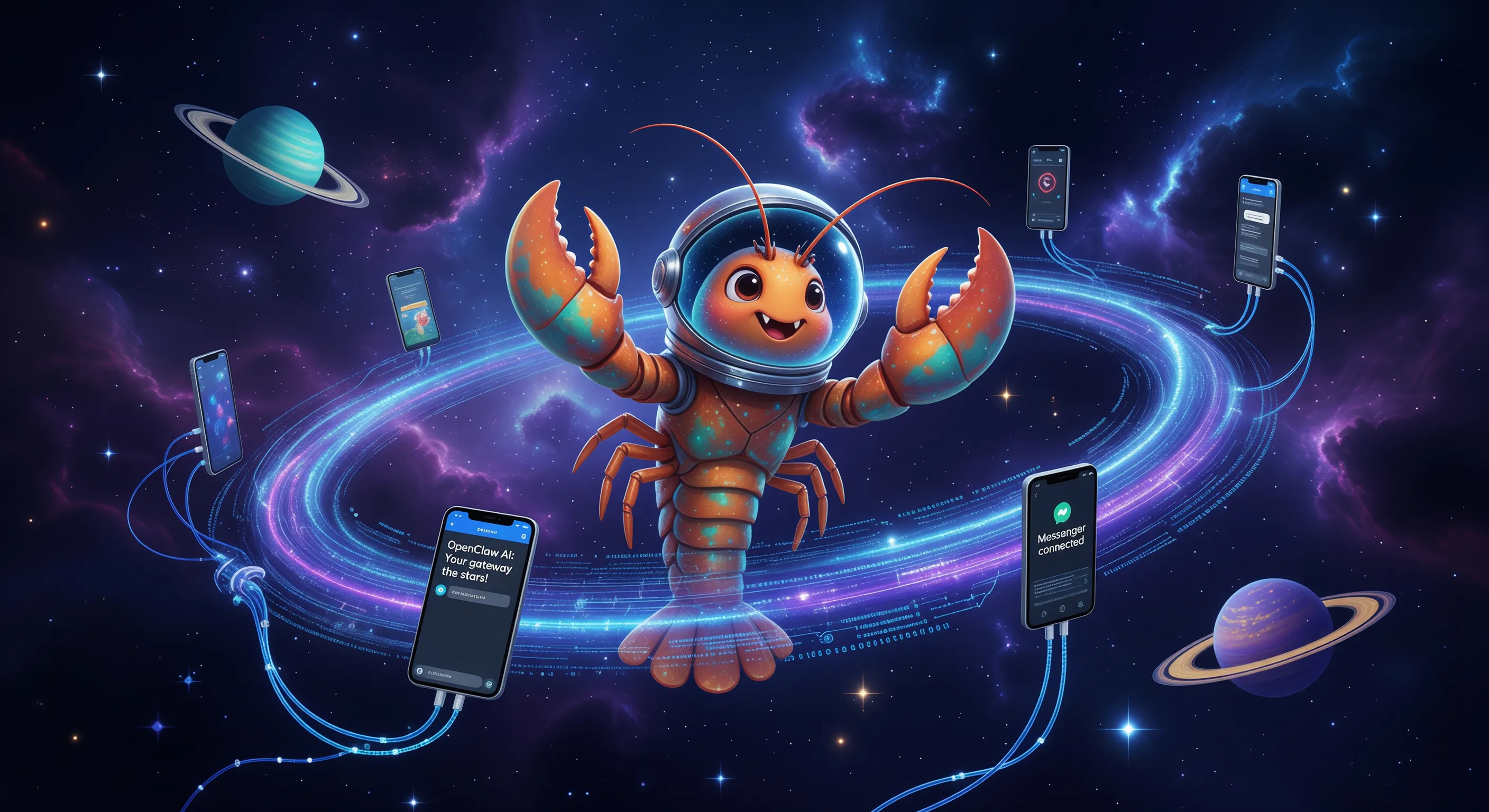
"Still opening a separate app just to chat with AI?" Imagine sending a text like "Schedule my day" to your AI assistant on WhatsApp or Telegram and getting a reply in a second—just like texting a friend. The open-source project 'OpenClaw' has made this dream a reality. In February 2026, we dive deep into everything about this 'Space Lobster' that's heating up the tech community.
What is OpenClaw?: Lobsters and Time Machines
OpenClaw is, simply put, the "Universal Messenger Gateway for AI Agents." It acts as a bridge connecting the messaging apps we use daily—WhatsApp, Telegram, Discord, and even Apple's iMessage—directly to AI agents.
Led by developer Peter Steinberger and Pi creator Mario Zechner, the project's name stems from "CLAW + TARDIS." It embraces the humorous concept that "every space lobster needs a time-and-space machine."
"Send a message, get an agent response — from your pocket. Any OS, any time." – OpenClaw Official Slogan
Core Architecture
OpenClaw isn't just a chatbot builder. It's a local-first gateway that you install on your own PC or server without relying on centralized cloud services. This means your conversation data never passes through a third-party server but stays entirely under your control.
Why OpenClaw?: Local, Privacy, Extensibility
There are countless chatbots out there, but OpenClaw stands out for clear reasons.
Privacy-First Design
OpenClaw defaults to loopback connections, meaning you own the gateway. It processes WhatsApp Web session data locally without leaking it externally. Security is robust with token-based authentication.
- Multi-Platform Support: Supports WhatsApp (via Baileys), Telegram (grammY), Discord, iMessage (macOS only), Signal, Google Chat, and more.
- Powerful AI Integration: Supports 'Pi' agent out of the box, and allows connecting paid subscriptions like Anthropic (Claude) and OpenAI (ChatGPT) via OAuth.
- Skill System (ClawHub): Like an App Store, you can install various 'Skills' created by developers to give your AI new capabilities.
Installation Guide (Detailed): From Setup to Launch
Installing OpenClaw is easier than you think, but there are a few prerequisites. Here is a step-by-step guide for beginners.
1. Prerequisites
The most important requirement is the Node.js version. OpenClaw relies on modern features, so Node.js v22 or higher is a must.
- Node.js: v22.0.0 or higher (Required)
- pnpm: Package manager (Recommended, optional)
- OS: macOS, Linux (Recommended), Windows (WSL2 Recommended)
# Check Node.js version
node -v
# Ensure it is v22.x.x or higher. Update if necessary.
2. Method A: Auto Script (Recommended)
The fastest and easiest method. Just copy and paste the command into your terminal.
macOS / Linux:
curl -fsSL https://openclaw.ai/install.sh | bashWindows (PowerShell as Admin):
iwr -useb https://openclaw.ai/install.ps1 | iex3. Method B: Manual NPM Install
If you are a developer or want more control, install it globally via NPM.
# Global install via npm
npm install -g openclaw@latest

# Or via pnpm
pnpm add -g openclaw@latest

# Verify installation
openclaw --version
4. Run Onboarding Wizard
After installation, run the `onboard` command to configure the system. This creates config files and registers necessary services.
openclaw onboard --install-daemonWizard Key Steps:
- Model Selection: Choose your AI model (Default: Pi Agent).
- Authentication: Set up API keys or OAuth for Anthropic/OpenAI.
- Gateway Config: Port settings (Default: 18789), allow external access. Keep defaults for local use.
- Channel Provider: Choose which messenger to connect (WhatsApp, Telegram, etc.).
Configuration: Connecting WhatsApp & Telegram
Let's dive into connecting your messengers. If you missed it during `openclaw onboard`, you can do it manually.
1. WhatsApp Integration (Most Popular)
WhatsApp connects easily via Web login without needing a separate API key.
openclaw channels login whatsappRunning this command will show a QR code in the terminal or a local dashboard URL.
- Open WhatsApp on your phone.
- Go to Settings -> Linked Devices -> Link a Device.
- Scan the QR code from the terminal.
- Wait for the success message!
2. Telegram Integration (Bot API)
Telegram connects via a Bot. Great for group chats.
- Search for @BotFather on Telegram and start a chat.
- Send `/newbot` and follow instructions to name your bot.
- Copy the HTTP API Token provided by BotFather.
- Edit the OpenClaw config file (`~/.openclaw/openclaw.json`) and paste the token.
// Example ~/.openclaw/openclaw.json
{
  "channels": {
    "telegram": {
      "enabled": true,
      "token": "YOUR_BOT_TOKEN_HERE"
    }
  }
}
Restart the service with `openclaw restart` after saving.
Skills & ClawHub: Empowering Your AI
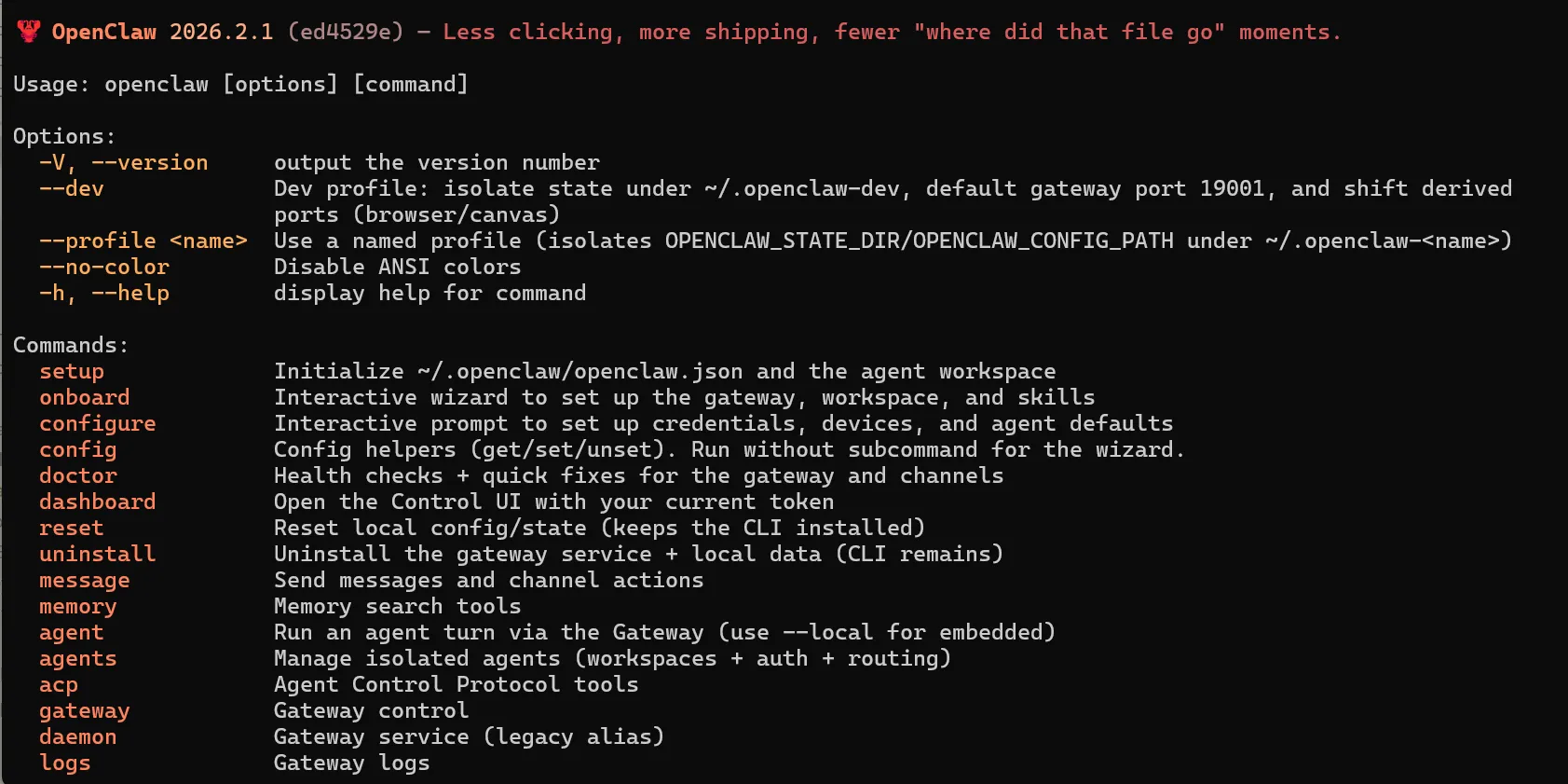
The true power of OpenClaw lies in 'Skills'. Beyond chatting, you can grant it abilities like web browsing, image generation, and coding. ClawHub is the App Store for these skills.
Using ClawHub
Search and install skills directly from the terminal.
# Search for skills
clawhub search image

# Install a skill (e.g., Image Generation)
clawhub install nano-banana-pro

# List installed skills
clawhub list

# Update all skills
clawhub update --all
Recommended Skills
- browsing: AI searches the web for real-time info. (Requires Brave Search API)
- image-gen: Ask "Draw a cat" and it sends the image to your chat.
- coder: Writes and executes Python scripts, showing you the output.
- home-assistant: Controls your IoT devices.
Real-World Use Cases: From Shopping to Coding
How does life change after installing OpenClaw? Here are some amazing use cases shared by actual users.
Case 1: Tesco Grocery Automation
One user built a workflow to plan weekly meals via OpenClaw, automatically add ingredients to a Tesco cart, and even book a delivery slot.
Mon: Kimchi Stew, Tue: Pasta... Menu planned.
Ingredients needed: Pork, Pasta noodles, Tomato sauce...
[Executing] Logging into Tesco... Cart filled.
Delivery slot booked for Feb 5th, 7 PM. Shall I checkout?
Case 2: The Developer's Pair Programming Partner
With GitHub skills integrated, you can receive bug reports on the go, review code, or send simple fixes via PR. Connecting Claude Pro handles complex architecture questions with ease.
Case 3: Smart Home Control (Home Assistant)
Send "Set living room temp to 24°C" on WhatsApp, and OpenClaw calls the Home Assistant API to adjust your thermostat. No need to toggle between apps.
Conclusion: The Future of AI is in Messaging
We spend most of our day in messaging apps. OpenClaw is like an invitation to bring the smartest assistant into that familiar space. Why not open your terminal right now and adopt your own lobster assistant, 'Clawd'?
More detailed info and docs can be found at OpenClaw Official Docs. Share your unique skills or use cases in the comments!