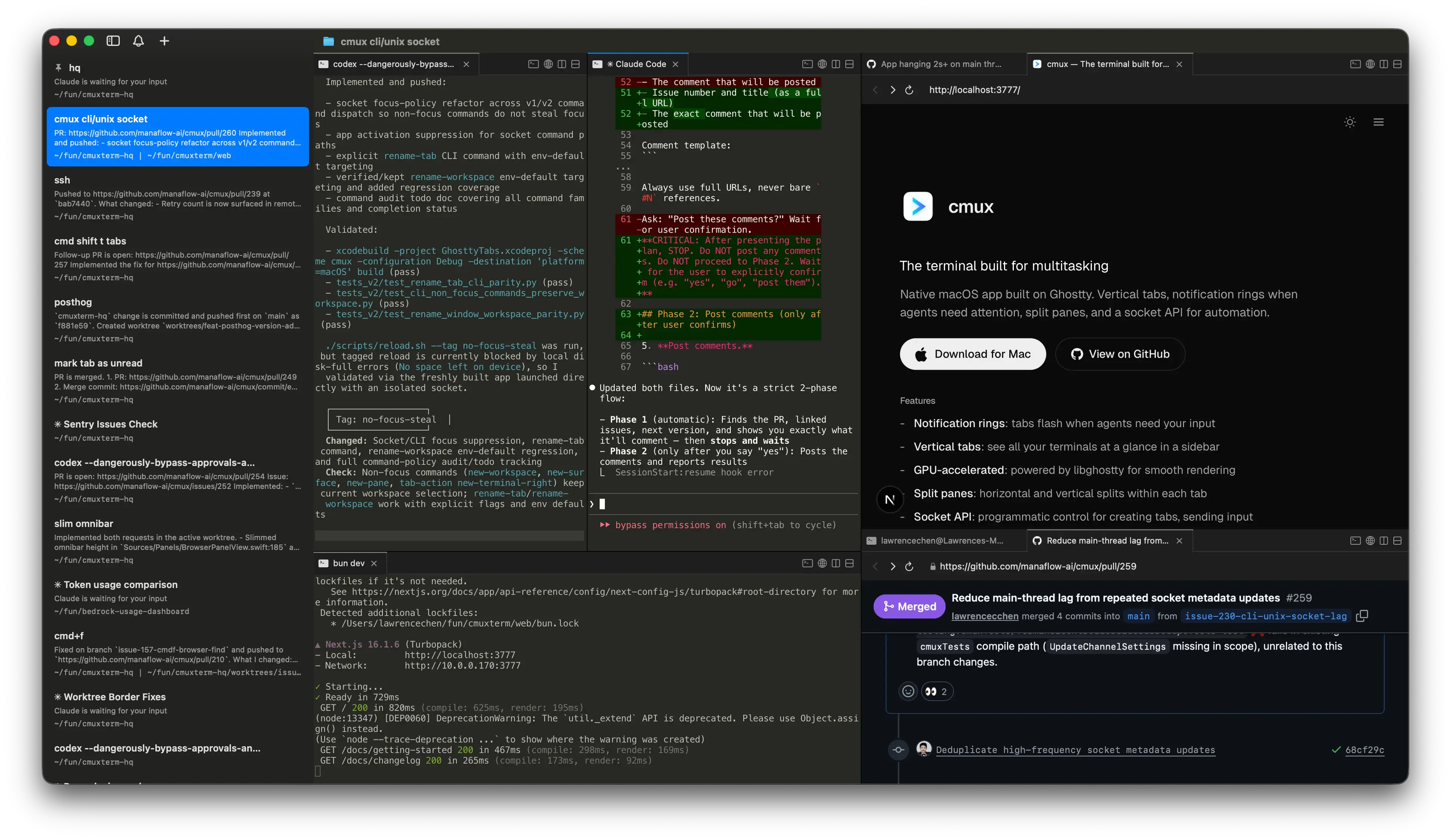
In 2026, AI coding agents like Claude Code, Codex, and OpenCode have become integral to developers' daily workflows. However, managing multiple agents simultaneously, monitoring their status, and collaborating efficiently remains a significant challenge. CMUX was born to solve this exact problem—a native macOS terminal designed specifically for AI coding agents. Built on Ghostty's GPU-accelerated rendering engine, CMUX features innovative vertical tabs, smart notifications, an embedded browser, and powerful CLI automation. This comprehensive guide dives deep into everything CMUX has to offer.
1. What is cmux? A New Standard for the AI Coding Era 🤖
cmux is an open-source macOS terminal released in February 2026 by Lawrence Chen and Austin Wang. It's not just another terminal emulator—it's a next-generation development environment designed with AI coding agent collaboration as the top priority.
How is cmux different from existing terminal multiplexers (tmux, screen) or modern terminals (Ghostty, Warp, iTerm2)? The key difference is "agent-centric design." While traditional terminals were designed assuming human keyboard input, CMUX provides infrastructure for AI agents to autonomously explore environments, manipulate interfaces, and interact with users.
Technical Foundation
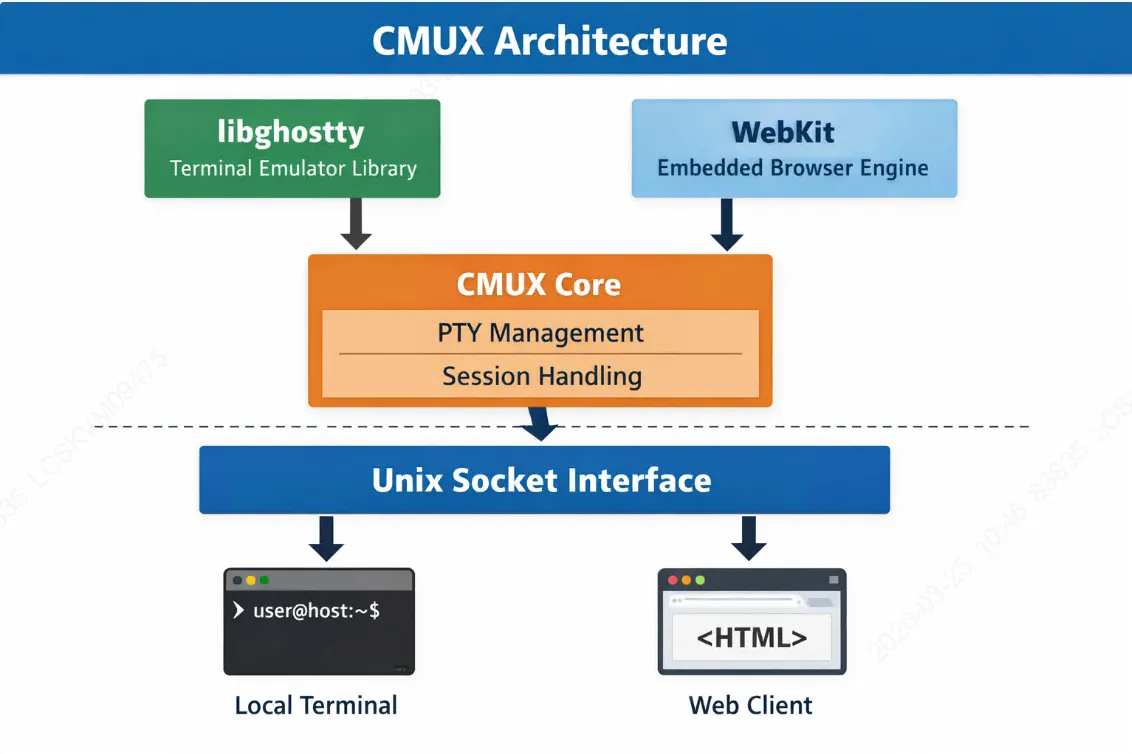
- Swift + AppKit: A pure native macOS app (not Electron/Tauri) boasting fast startup times and low memory usage.
- libghostty: Uses Ghostty's GPU-accelerated rendering engine for smooth terminal experiences.
- WebKit: The embedded browser uses macOS's native WebKit engine.
- Unix Domain Socket: Communication with agents happens via ultra-low-latency Unix sockets using JSON messages.
"Give a million developers composable primitives and they'll collectively find the most efficient workflows faster than any product team could design top-down." – The Zen of cmux
2. Installation to Execution: 5-Minute Complete Guide ⚡
cmux is currently available exclusively for macOS and can be installed in two ways.
Method 1: Homebrew (Recommended)
# Add tap and install
brew tap manaflow-ai/cmux
brew install --cask cmux

# Update
brew upgrade --cask cmux
Method 2: DMG Download
Download the DMG file from the official website (cmux.dev) and drag it to your Applications folder. Sparkle auto-updates are built-in, so you only need to install once.
CLI Setup
While cmux is automatically available within the terminal, you'll need to create a symbolic link to use it from external terminals:
sudo ln -sf "/Applications/cmux.app/Contents/Resources/bin/cmux" /usr/local/bin/cmux

# Test
cmux list-workspaces
cmux notify --title "Test" --body "cmux is ready!"
What You See on First Launch
- A terminal window with a vertical tab sidebar on the left
- An initial workspace automatically created
- Ghostty-based GPU-accelerated terminal
- Automatically reads existing Ghostty settings (~/.config/ghostty/config)
3. Vertical Tab Revolution: Git Branches to Notifications at a Glance 📊
One of the biggest problems with traditional terminals is context loss. Open dozens of tabs and it becomes difficult to track which tab belongs to which project, what the current Git branch is, or the PR status.
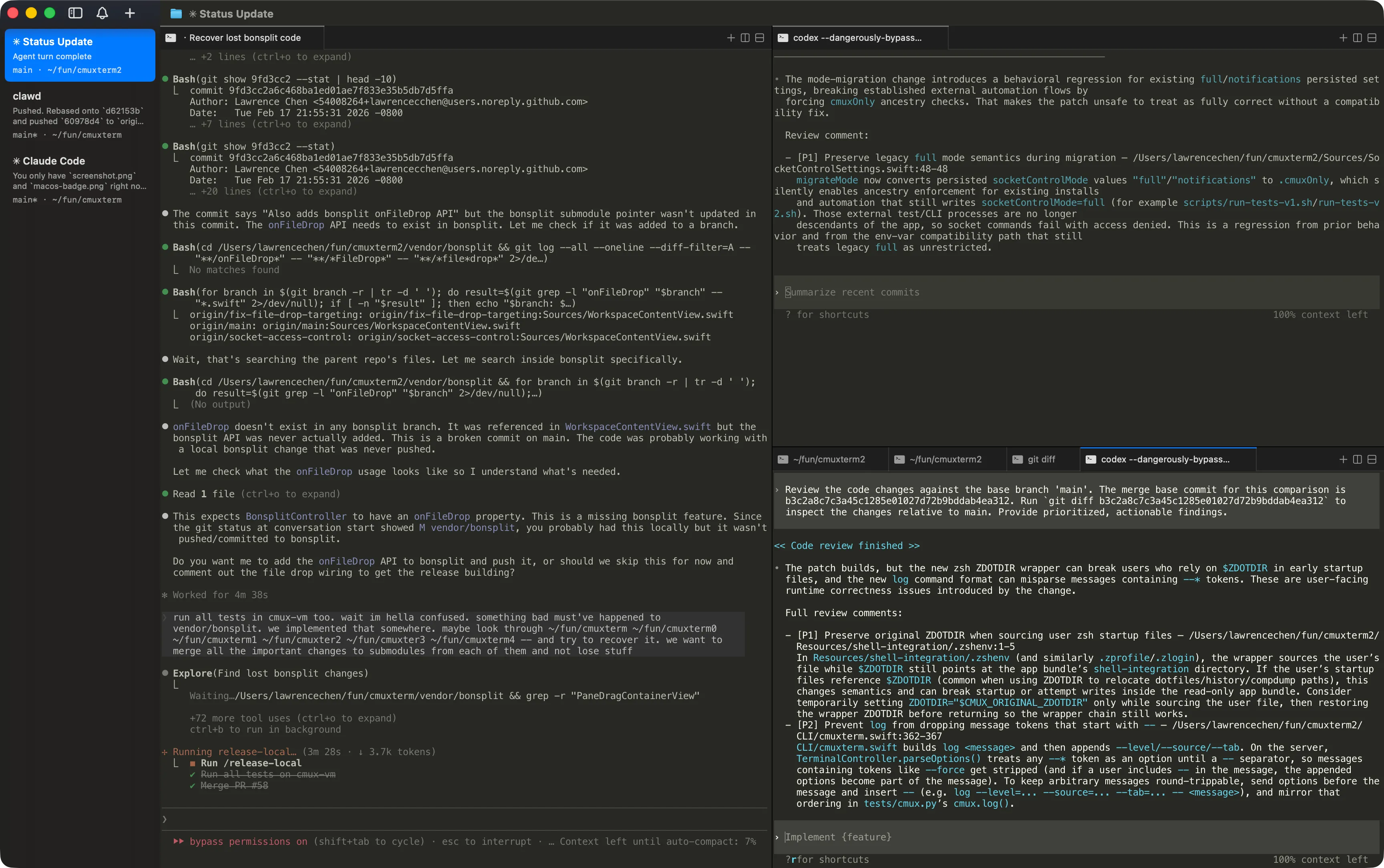
CMUX's vertical tab sidebar completely solves this problem. Each tab displays the following information in real-time:
Git Branch
Displays the current Git branch name in real-time. Automatically updates when you switch branches.
PR Status
Shows the number and status (open/closed/merged) of connected Pull Requests with icons.
Working Directory
Displays the current working directory path so you can immediately identify which project you're in.
Listening Ports
Shows network ports opened by that session, allowing you to check development server status.
Latest Notifications
Previews the most recently received notification text.
Notification Ring
A blue ring appears on tabs with unread notifications, visually highlighting them.
Workspaces and Surfaces
CMUX uses Workspace and Surface concepts:
- Workspace: Independent working spaces (created with Cmd+N)
- Surface: Tabs within a workspace (created with Cmd+T)
- Pane: Split screens within a surface (Cmd+D for horizontal, Cmd+Shift+D for vertical)
This hierarchical structure allows systematic management of complex multitasking environments.
Key Takeaway
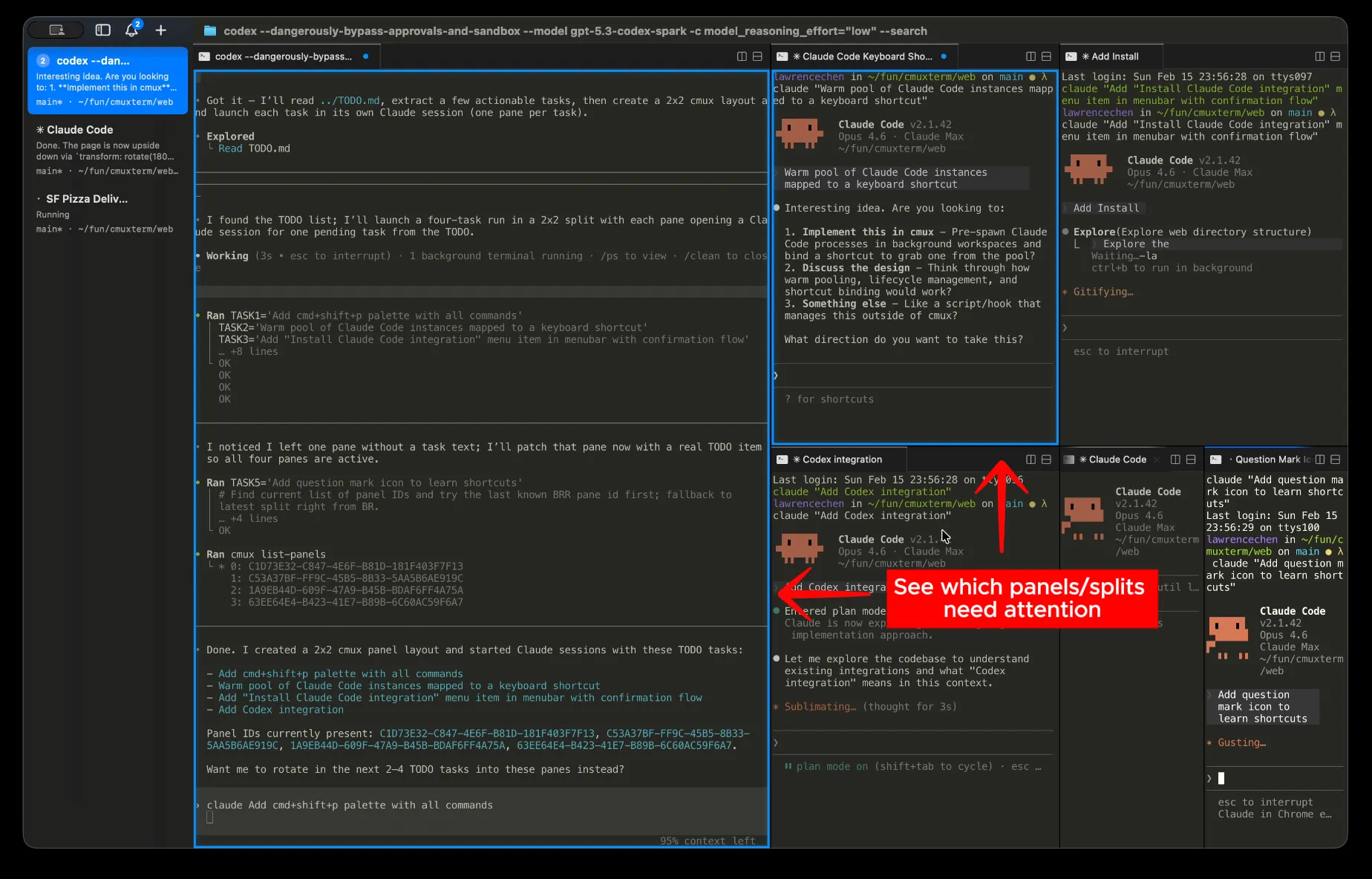
CMUX's vertical tabs aren't just a tab list—they're an integrated context dashboard combining Git status, PR info, ports, and notifications. This allows you to monitor dozens of agent sessions at a glance.
4. Smart Notification System: When Agents Call You 🔔
When using Claude Code or Codex, you've probably experienced this: the agent is waiting for input, but you're focused on other work and only realize minutes later. Traditional macOS notifications just say "Claude is waiting for your input" without telling you which context or what they're waiting for.
CMUX's notification system fundamentally solves this problem.
OSC Terminal Sequence Support
CMUX supports standard OSC (Operating System Command) terminal escape sequences:
- OSC 9: iTerm2-style notifications
- OSC 99: Kitty terminal notifications
- OSC 777: Hyperlink notifications
Visual Notifications: Blue Ring
When a notification arrives, a blue ring appears around the panel, and the sidebar tab is highlighted. This immediately signals that the agent needs attention.
# Send notifications via CLI
cmux notify --title "Test Complete" --body "All unit tests passed"

# Integration with Claude Code hooks
# ~/.claude/hooks/notify.sh
cmux notify --title "Claude Code" --body "$1"
Notification Panel
Press Cmd+I to open the notification panel showing all pending notifications. Press Cmd+Shift+U to jump directly to the most recent unread notification.
5. Built-in Browser: Complete Workflows Inside the Terminal 🌐
When doing web development, the cycle of modifying code in the terminal, switching to the browser to check results, and returning to the terminal is repetitive and inefficient. CMUX provides a built-in browser to completely integrate this workflow.
Agent Browser-Based Scripting API
CMUX's browser provides a scripting API ported from Vercel Labs' agent-browser, allowing AI agents to:
- Accessibility Tree Snapshots: Extract page DOM structure in text format
- Acquire Element References: Assign unique reference IDs to interactive elements
- Click Elements: Programmatically click specific elements
- Fill Forms: Enter text into input fields
- Execute JavaScript: Run arbitrary JS code within the page
- Read Console Logs: Capture browser console output
# Browser CLI command examples

# Open new browser panel
cmux new-pane --type browser --url "http://localhost:3000"

# Page snapshot (accessibility tree)
cmux browser snapshot

# Click element
cmux browser click --ref e14

# Type text
cmux browser type --ref e10 --text "Hello World"

# Execute JavaScript
cmux browser evaluate --script "document.title"

# Wait for page load
cmux browser wait-for-load
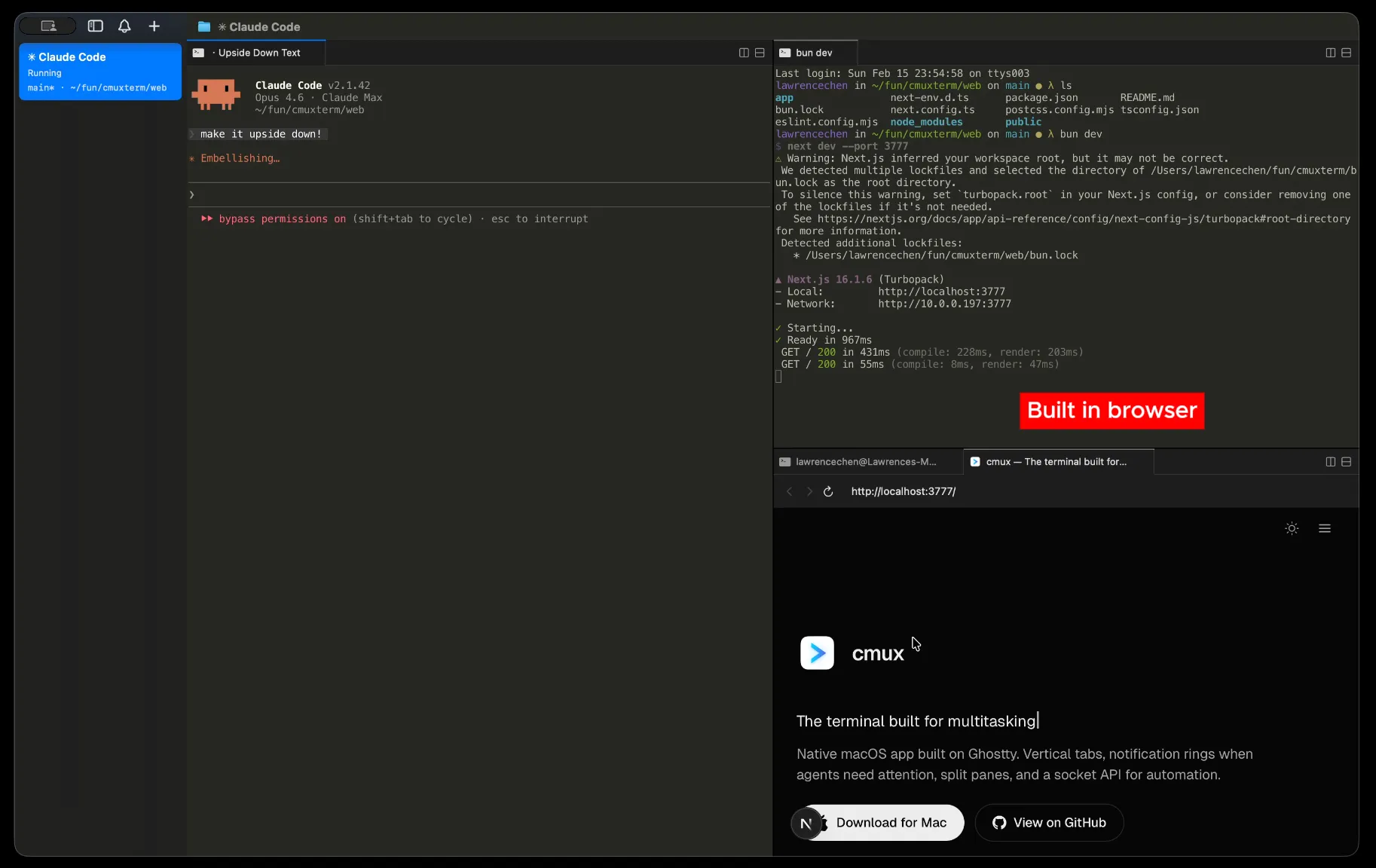
Real Example: Claude Code Testing Directly
After starting a development server, you can ask Claude Code to:
Claude Code can control the browser via cmux CLI, analyze page structure through snapshots, click elements, fill forms, and verify results—all within a single terminal window.
6. CLI Automation: The Magic of Unix Sockets 🧙
CMUX's true power comes from its CLI and Unix socket API. This allows AI agents not just to output text, but to control the terminal environment itself.
Unix Domain Socket Communication
The cmux CLI sends JSON-formatted messages to the app via Unix domain sockets (/tmp/cmux.sock). This is the fastest form of inter-process communication (IPC), enabling real-time interaction between agents and the GUI.
# View all available commands
cmux --help

# Main command categories:

# 1. Workspace Management
cmux list-workspaces
cmux new-workspace --name "Project A"
cmux rename-workspace --workspace workspace:1 --name "New Name"

# 2. Surface/Panel Management
cmux new-surface
cmux new-split --direction right
cmux close-surface --surface surface:3
cmux trigger-flash --surface surface:2

# 3. Interaction Commands
cmux send --surface surface:1 --text "echo 'Hello'"
cmux send-key --surface surface:1 --key Return

# 4. Browser Control
cmux browser navigate --url "https://example.com"
cmux browser snapshot
cmux browser click --ref e10
cmux browser evaluate --script "alert('test')"

# 5. Feedback and Metadata
cmux notify --title "Complete" --body "Task finished"
cmux set-status --surface surface:1 --text "Running..."
cmux set-progress --surface surface:1 --percent 75
Real Example: Parallel Test Execution
Here's an example using cmux CLI to run multiple tests in parallel and clean up automatically afterward:
#!/bin/bash
# parallel-test.sh

# Create 3 new panels (split to the right)
cmux new-split --direction right  # surface:2
cmux new-split --direction right  # surface:3

# Run different tests in each panel
cmux send --surface surface:1 --text "npm run test:unit"
cmux send-key --surface surface:1 --key Return

cmux send --surface surface:2 --text "npm run test:integration"
cmux send-key --surface surface:2 --key Return

cmux send --surface surface:3 --text "npm run test:e2e"
cmux send-key --surface surface:3 --key Return

# Wait for completion (use more sophisticated methods in practice)
sleep 60

# Check results
cmux read-screen --surface surface:1 > unit-results.txt
cmux read-screen --surface surface:2 > integration-results.txt
cmux read-screen --surface surface:3 > e2e-results.txt

# Clean up panels
cmux close-surface --surface surface:3
cmux close-surface --surface surface:2

# Notification
cmux notify --title "Tests Complete" --body "All tests finished"7. Multi-Agent Orchestration: The Art of Parallel Processing 🎭
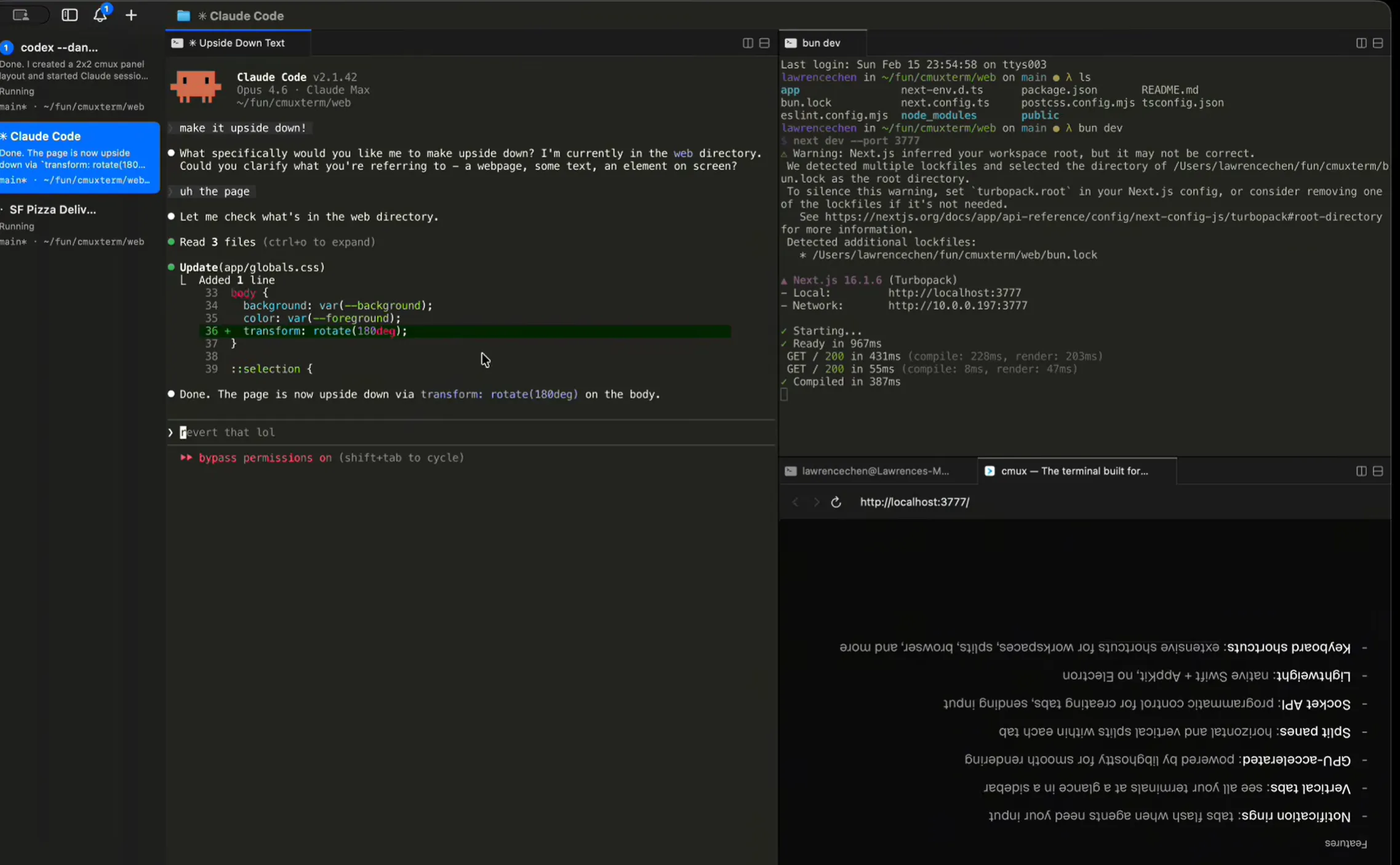
One of CMUX's most powerful use cases is running and coordinating multiple AI agent instances simultaneously. This allows complex tasks to be divided into subtasks and processed in parallel.
Real Scenario: Code Analysis and Documentation
Suppose you need to analyze and document a large codebase:
- The main agent analyzes the task and divides it into subtasks
- Sub-agent 1 is responsible for reading and understanding project structure
- Sub-agent 2 is responsible for analyzing core algorithms
- Both sub-agents work in parallel
- The main agent collects results and generates integrated documentation
- All panels are automatically cleaned up
# You can request this from Claude Code:

"Create 2 Claude instances in new panels.
Assign one to read and understand project structure,
and the other to analyze core code.
Read the results when both are done and close the panels."
Claude Code uses cmux CLI to:
- Create new panels (surface:7, surface:8)
- Run
claudecommand in each panel - Send specific task instructions
- Capture results with
cmux read-screenafter completion - Clean up with
cmux close-surface
8. CMUX vs Competitors: Objective Comparison Analysis ⚖️
How does CMUX compare to existing terminal tools? Let's examine through an objective feature comparison table.
| Feature | CMUX | Ghostty | tmux | iTerm2 | Warp |
|---|---|---|---|---|---|
| Native macOS App | ✅ Swift/AppKit | ✅ Zig | ❌ Runs inside terminal | ✅ Objective-C | ❌ Electron |
| Vertical Tabs | ✅ (Git/PR/Port display) | ❌ | ❌ | ❌ | ❌ |
| AI Agent Notifications | ✅ (Blue ring + sidebar) | ❌ | ❌ | ⚠️ Basic only | ⚠️ Limited |
| Built-in Browser | ✅ (Scripting API) | ❌ | ❌ | ❌ | ❌ |
| Unix Socket API | ✅ | ❌ | ⚠️ Limited | ❌ | ❌ |
| GPU Acceleration | ✅ (libghostty) | ✅ | ❌ | ⚠️ Partial | ❌ |
| Config Compatibility | ✅ Reads Ghostty config | ✅ | N/A | ✅ | ❌ |
| Open Source | ✅ AGPL | ✅ MIT | ✅ BSD | ❌ | ❌ |
| Platform | macOS only | Cross-platform | Unix-like | macOS only | Cross-platform |
Pros and Cons Analysis
✅ Pros
- Optimized design for AI coding agents
- Fast performance of native apps
- Innovative vertical tab system
- Powerful CLI/socket API
- Perfect compatibility with Ghostty
- Fully open source (AGPL)
⚠️ Cons
- macOS only (no Linux/Windows support)
- Relatively new tool (limited ecosystem)
- Limited session restoration (can't restore process state)
- Some users report split panel rendering issues
- AGPL license (care needed for commercial use)
9. Community Reactions: Real User Testimonials 💬
Since its February 2026 release, CMUX has garnered significant attention from developers on Hacker News, Reddit, and Product Hunt. Let's look at real user reactions.
Positive Reactions
Critical Reactions
Developer Response
The CMUX team actively accepts community feedback. They receive bug reports and feature requests through Discord and GitHub Issues, and provide rapid updates through Nightly builds. Founder's Edition supporters get priority bug fixes and early access to new features (iOS app, cloud VMs, voice mode).
10. Advanced Tips and Workflows: Using Like a Pro 🎯
Keyboard Shortcut Mastery
# Workspace Management
Cmd + N          # New workspace
Cmd + 1~8        # Go to workspace 1~8
Cmd + 9          # Go to last workspace
Ctrl + Cmd + ]   # Next workspace
Ctrl + Cmd + [   # Previous workspace
Cmd + Shift + W  # Close workspace
Cmd + Shift + R  # Rename workspace
Cmd + B          # Toggle sidebar

# Surface (Tab) Management
Cmd + T          # New surface
Cmd + Shift + ]  # Next surface
Cmd + Shift + [  # Previous surface
Ctrl + Tab       # Next surface
Ctrl + Shift + Tab # Previous surface
Ctrl + 1~8       # Go to surface 1~8
Cmd + W          # Close surface

# Panel Splitting
Cmd + D          # Split right
Cmd + Shift + D  # Split down
Opt + Cmd + Arrow Keys # Move focus directionally
Cmd + Shift + H  # Flash focused panel

# Browser
Cmd + Shift + L  # Open browser in split screen
Cmd + L          # Focus address bar
Cmd + [          # Go back
Cmd + ]          # Go forward
Cmd + R          # Refresh

# Notifications
Cmd + I          # Show notification panel
Cmd + Shift + U  # Jump to latest unread notification
Claude Code Hooks Setup
Set up hooks for perfect integration with Claude Code:
# Create ~/.claude/hooks/notify.sh
#!/bin/bash
# Send notification whenever Claude Code events occur

cmux notify --title "Claude Code" --body "$1"

# Optionally run other cmux commands
# cmux set-status --surface $(cmux current-surface) --text "$1"cmux current-surface command to get the currently active surface ID, allowing dynamic status updates.
Automation Script Example
A script to automatically set up the environment when starting a project:
#!/bin/bash
# setup-project.sh

PROJECT_NAME=$1

# Create new workspace
WORKSPACE_ID=$(cmux new-workspace --name "$PROJECT_NAME" | jq -r '.id')

# Development server panel (left)
cmux send --workspace $WORKSPACE_ID --text "cd ~/projects/$PROJECT_NAME && npm run dev"
cmux send-key --workspace $WORKSPACE_ID --key Return

# Test panel (top right)
cmux new-split --workspace $WORKSPACE_ID --direction right
cmux send --workspace $WORKSPACE_ID --surface surface:2 --text "cd ~/projects/$PROJECT_NAME && npm test -- --watch"
cmux send-key --workspace $WORKSPACE_ID --surface surface:2 --key Return

# Claude Code panel (bottom right)
cmux new-split --workspace $WORKSPACE_ID --surface surface:2 --direction down
cmux send --workspace $WORKSPACE_ID --surface surface:3 --text "cd ~/projects/$PROJECT_NAME && claude"
cmux send-key --workspace $WORKSPACE_ID --surface surface:3 --key Return

# Browser panel (optional)
cmux new-split --workspace $WORKSPACE_ID --direction right
cmux new-pane --workspace $WORKSPACE_ID --surface surface:4 --type browser --url "http://localhost:3000"

cmux notify --title "Project Setup Complete" --body "$PROJECT_NAME environment is ready"
11. The Zen of CMUX: Philosophy and Future 🔮
CMUX embodies a philosophy beyond just being a tool. The "Zen of CMUX" from the official documentation well expresses this tool's core philosophy.
"cmux is not prescriptive about how developers hold their tools. It's a terminal and browser with a CLI, and the rest is up to you."
"cmux is a primitive, not a solution. It gives you a terminal, a browser, notifications, workspaces, splits, tabs, and a CLI to control all of it. cmux doesn't force you into an opinionated way to use coding agents. What you build with the primitives is yours."
"The best developers have always built their own tools. Nobody has figured out the best way to work with agents yet, and the teams building closed products definitely haven't either. The developers closest to their own codebases will figure it out first."
"Give a million developers composable primitives and they'll collectively find the most efficient workflows faster than any product team could design top-down."
Future Roadmap
The CMUX team provides early access to these features for Founder's Edition supporters:
- cmux AI: An AI assistant providing context for all workspaces, tabs, and panels
- iOS App: Mobile terminal synchronized with desktop
- Cloud VMs: CMUX instances running in the cloud
- Voice Mode: Terminal control via voice commands
Conclusion
CMUX presents a new standard for the AI coding agent era. It's not just a terminal, but an orchestration platform where agents and humans can collaborate efficiently.
Context maintenance through vertical tabs, efficient interaction through smart notifications, integrated workflows through the built-in browser, and infinite extensibility through the powerful CLI API—all these make CMUX an essential tool for developers in 2026.
If you're a macOS user using Claude Code, Codex, or other AI coding agents, I strongly recommend trying CMUX. Once you use it, you'll never want to go back to your old terminal.
brew tap manaflow-ai/cmux && brew install --cask cmuxOfficial Docs: cmux.dev/docs
GitHub: github.com/manaflow-ai/cmux
Discord: discord.gg/cmux