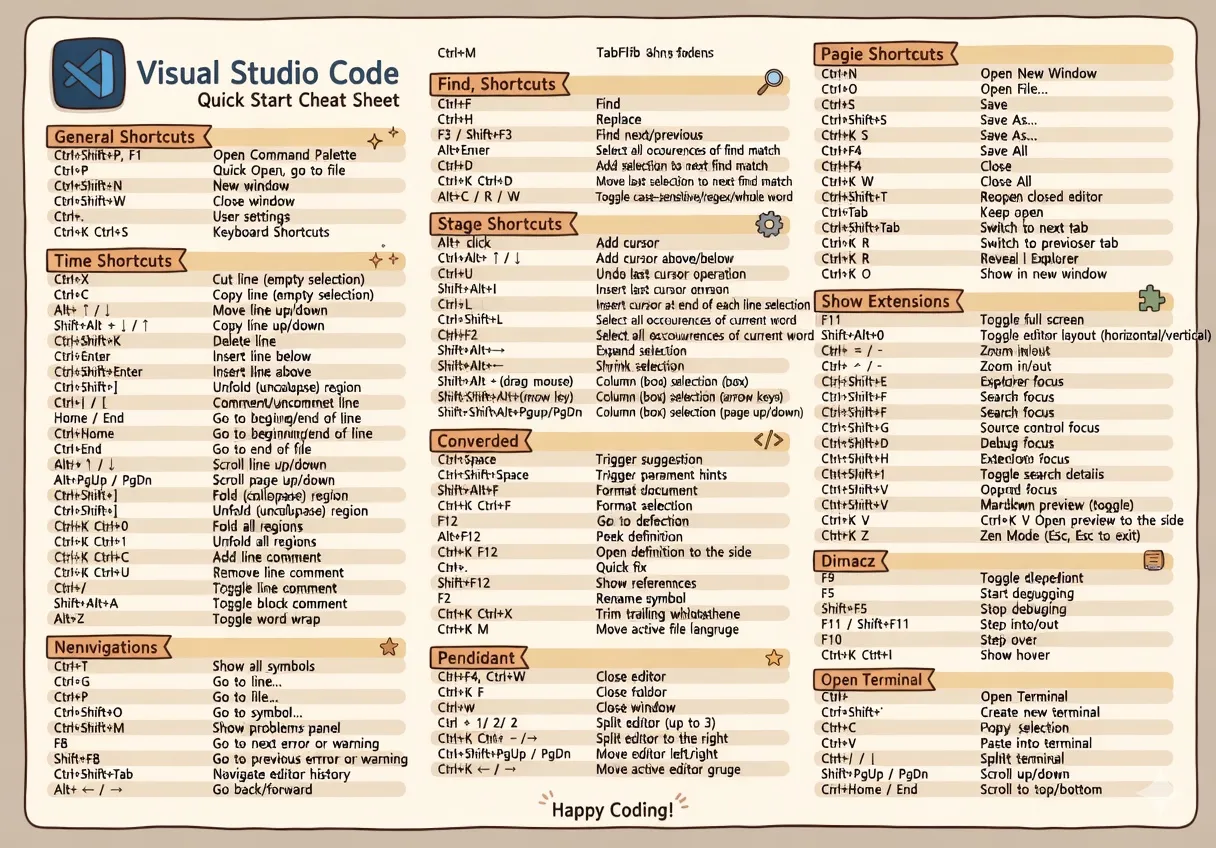
If you write code every day, you know how exhilarating it is to take your hands off the mouse and control everything with just your keyboard. Visual Studio Code (VSCode) is the most popular code editor, used by over 70% of developers worldwide, and its secret lies in its powerful shortcut system. In this article, we'll show you step-by-step how to boost your development productivity by 300% or more using the latest VSCode shortcuts as of 2026. We've compiled essential tips that everyone from beginners to 10-year veterans might be missing! 🚀
Why Shortcuts Matter: The Secret of Productivity
According to Stack Overflow's 2025 Developer Survey, developers spend an average of 4 hours and 30 minutes daily in their editor. A significant portion of this time is wasted moving the mouse to find menus. Research shows that developers who actively use keyboard shortcuts code 35% faster and experience 28% less fatigue than those who don't.
💡 Community Reactions
One user on Reddit's r/vscode shared: "After learning shortcuts, I barely use the mouse anymore. The first two weeks were uncomfortable, but now my fingers move without thinking. It feels like playing the piano." Another user emphasized: "Just learning Ctrl+P for opening files and Ctrl+Shift+F for global search doubled my productivity."
As of 2026, VSCode provides over 1,000 default shortcuts. But you don't need to memorize them all. Mastering the 100+ essential shortcuts featured in this article will let you handle 90% of everyday coding with just your keyboard.
"The mouse shows you options; the keyboard executes your intent. True developers choose the latter." – Developer Community Proverb
Basic Navigation: Teleport Between Files and Code
As projects grow, finding files takes exponentially more time. VSCode's navigation shortcuts completely eliminate this pain.
📁 File Navigation Master
Ctrl+P is one of VSCode's most powerful shortcuts. Just type part of a filename and fuzzy search will instantly find what you need. For example, typing "usercontroller" will find "UserController.ts", "user_controller.js", and more.
⭐ Pro Tip: Advanced Quick Open
While in Ctrl+P, press ? to see all available commands. For example, edt shows open editors, term quickly opens the terminal. Also, add : and a line number after the filename to jump directly to that line (e.g., "app:42" → line 42 of app.js).

In-Code Navigation
Key Takeaway
The key to file navigation is Ctrl+P. Mastering just this one shortcut saves 90% of the time spent clicking through the file tree. Type part of a filename and hit Enter to open instantly.
Editing Magic: Multi-cursor and Advanced Selection
VSCode's true power comes from its multi-cursor feature. Being able to edit multiple lines simultaneously is a game-changer for refactoring.
Multi-cursor Master Class
// Multi-cursor example: Batch variable rename
// Press Ctrl+D repeatedly to select 'user', then type 'customer'

const user = { name: 'John' };
const userAge = 30;
const userEmail = 'john@example.com';

// 3x Ctrl+D then type 'customer' → Changed all at once!
Advanced Selection Techniques
Beyond simple drag selection, VSCode offers smart selection expansion.
💡 Real-World Scenario
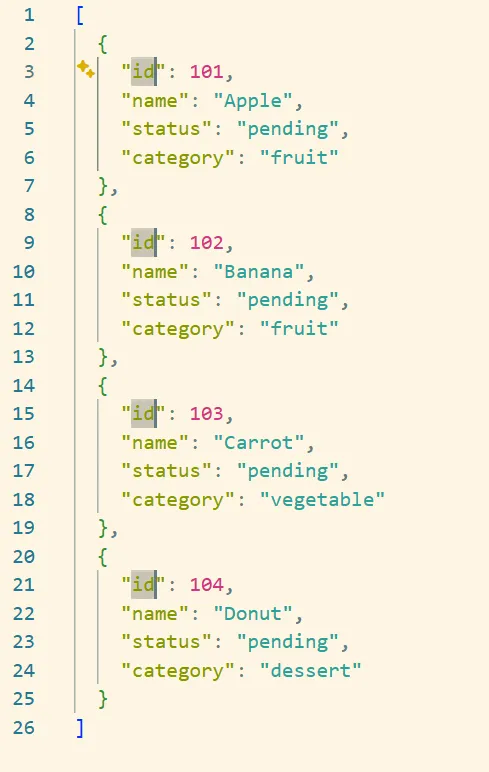
When converting JSON data to TypeScript interfaces, select property names and use Ctrl+D to select all properties, then add necessary keywords before and after. This completes dozens of lines of work in seconds. Reddit users describe this feature as "magical," especially saving hours during large-scale refactoring.
Code Navigation Master: Go to Definition & IntelliSense
Finding function or class definitions in large codebases is a daily task. VSCode's code navigation shortcuts make this instantaneous.
Alt+F12 (Peek Definition) is particularly powerful. Check definitions in a popup without leaving your current position, perfect for quickly checking function implementations and returning immediately.
IntelliSense and Code Completion
⭐ Pro Tip: The Power of F2 Rename
Unlike simple Find & Replace, F2 Rename is based on static analysis. It changes all references including import/export statements at once, without the risk of accidentally changing other strings. In TypeScript projects, it refactors with type safety guaranteed.
Mastering the Integrated Terminal
VSCode's built-in terminal lets you execute commands without a separate window. Mastering terminal shortcuts allows seamless switching between coding and command execution.
Terminal Navigation Shortcuts
💡 Terminal Splitting Tips
In the terminal panel, use Ctrl+Shift+5 to split the terminal vertically. This is incredibly useful for frontend development: run your dev server (npm run dev) on the left and Git commands on the right. Switch between terminal tabs with Ctrl+PageUp/PageDown.
Debugging Shortcuts: Catching Bugs Faster
Debugging takes up a significant portion of development time. Controlling VSCode's powerful debugger from the keyboard dramatically speeds up bug fixing.
Just mastering F5, F10, and F11 covers most debugging scenarios. Understanding the difference between F10 (Step Over) and F11 (Step Into) is crucial. Use F10 when you don't want to dive into library functions, F11 when you need to examine internal logic.
Git Integration: Version Control from Keyboard
VSCode's built-in Git features handle most daily Git operations within the editor. Let's explore shortcuts for efficiently managing the Source Control view.
💡 GitLens Extension Recommendation
Add the GitLens extension to the default Git features to see last commit info above code lines, and instantly check who made what changes when. With GitLens installed, Ctrl+Shift+H shows the commit history for the current file, extremely useful for code reviews.
Hidden Gems: 20 Lesser-Known Pro Tips
Now for hidden shortcuts that many developers don't know but can't live without once discovered. These are tips recommended by developers on Reddit and Stack Overflow as "must-know."
🎯 Precise Editing
📐 Screen Control
🔄 Code Manipulation
🔤 Text Transformation
📁 File Management
🔍 Advanced Search
⭐ Hidden Pearl: Ctrl+K Shortcut Chains
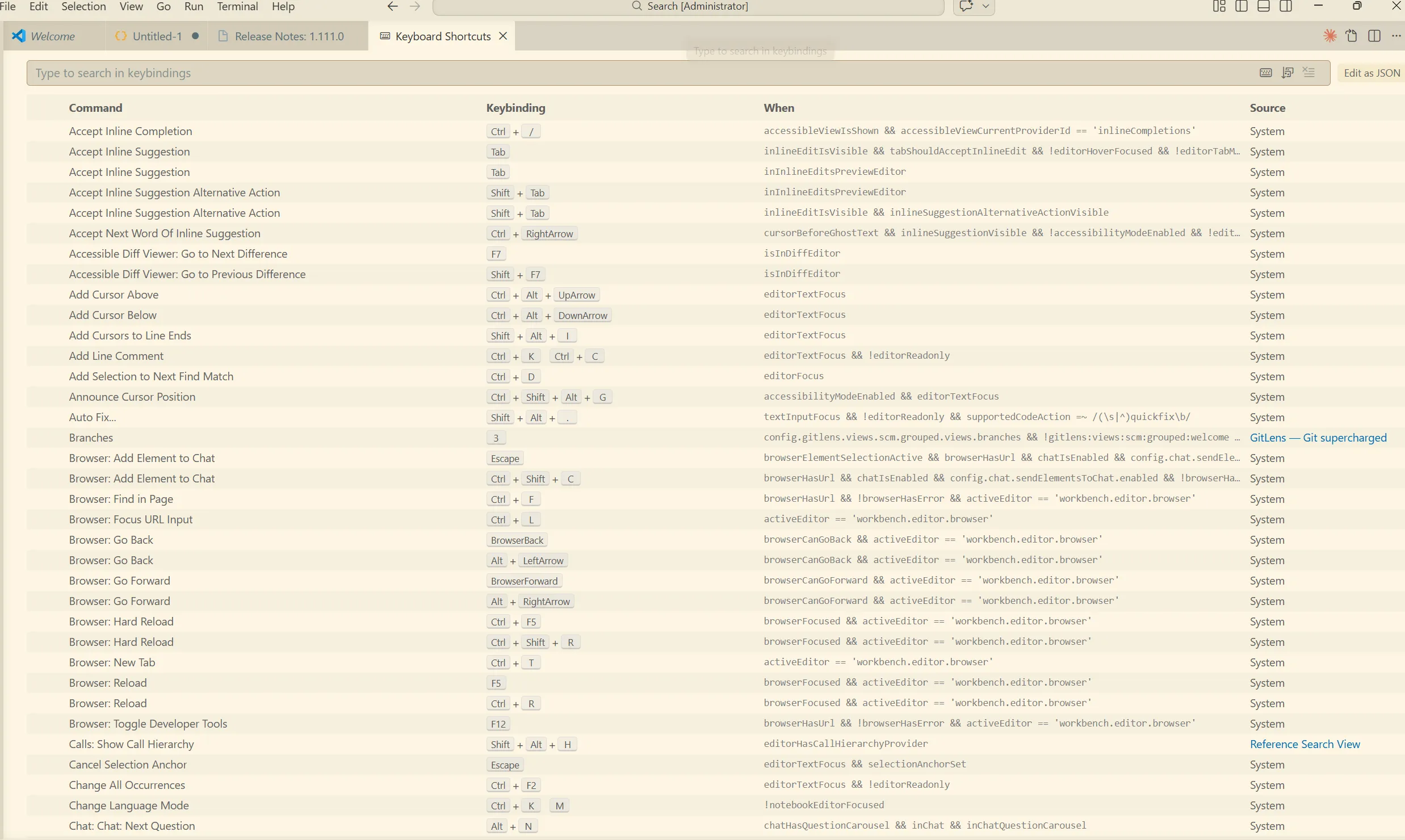
Ctrl+K is the starting point of "shortcut chains." Press Ctrl+K and release—VSCode waits for the next key. For example, Ctrl+K → Z is Zen mode, Ctrl+K → W closes all tabs, Ctrl+K → Ctrl+S opens keyboard shortcuts settings. This chain system allows assigning hundreds of commands to shortcuts.
Platform Differences: Windows vs Mac vs Linux
VSCode is cross-platform, but shortcuts vary slightly by operating system. Here's a guide for developers collaborating with teammates on different OSs or switching between multiple devices.
| Feature | Windows | macOS | Linux |
|---|---|---|---|
| Command Palette | CtrlShiftP | ⌘ShiftP | CtrlShiftP |
| Quick Open | CtrlP | ⌘P | CtrlP |
| Toggle Terminal | Ctrl` | ⌃` | Ctrl` |
| Copy Line (Up/Down) | ShiftAlt↑↓ | ⇧⌥↑↓ | CtrlShiftAlt↑↓ |
| Multi-cursor (Up/Down) | CtrlAlt↑↓ | ⌥⌘↑↓ | ShiftAlt↑↓ |
| Go to Definition | F12 | F12 | F12 |
| Toggle Sidebar | CtrlB | ⌘B | CtrlB |
| Open Settings | Ctrl, | ⌘, | Ctrl, |
💡 Tip for Mac Users
macOS uses both Cmd(⌘) and Ctrl(⌃). Generally, application-level commands (open file, save, etc.) use ⌘, while editor-internal commands (toggle terminal, etc.) use ⌃. Install keymap extensions to use shortcuts from other editors (Sublime, Vim, etc.) directly.
Creating Your Own Shortcuts: Customization
VSCode's true power lies in customization. If default shortcuts don't suit you or you want to assign shortcuts to frequently used extensions, you can set them yourself.
Editing keybindings.json Directly
Editing JSON directly enables more complex shortcut combinations than the GUI. For example, you can create shortcuts that run specific commands in the terminal.
// keybindings.json example
[
    {
        "key": "ctrl+h",
        "command": "workbench.action.tasks.runTask",
        "args": "Run tests"
    },
    {
        "key": "ctrl+shift+t",
        "command": "workbench.action.terminal.sendSequence",
        "args": { "text": "npm run dev\u000D" }
    },
    {
        "key": "f1",
        "command": "editor.action.formatDocument",
        "when": "editorTextFocus"
    }
]
⭐ Recommended Custom Shortcuts
Assign the dev server run command to Ctrl+Shift+T to execute npm run dev without focusing the terminal. Also, using when conditions lets you create shortcuts that only work in specific languages. Example: "when": "editorLangId == typescript"
Real-World Workflows: Shortcut Combinations
Let's see how to combine the shortcuts we've learned in actual development scenarios.
Scenario 1: Implementing a New Feature
Scenario 2: Large-Scale Refactoring
Scenario 3: Debugging Session
Conclusion: Start Applying Today
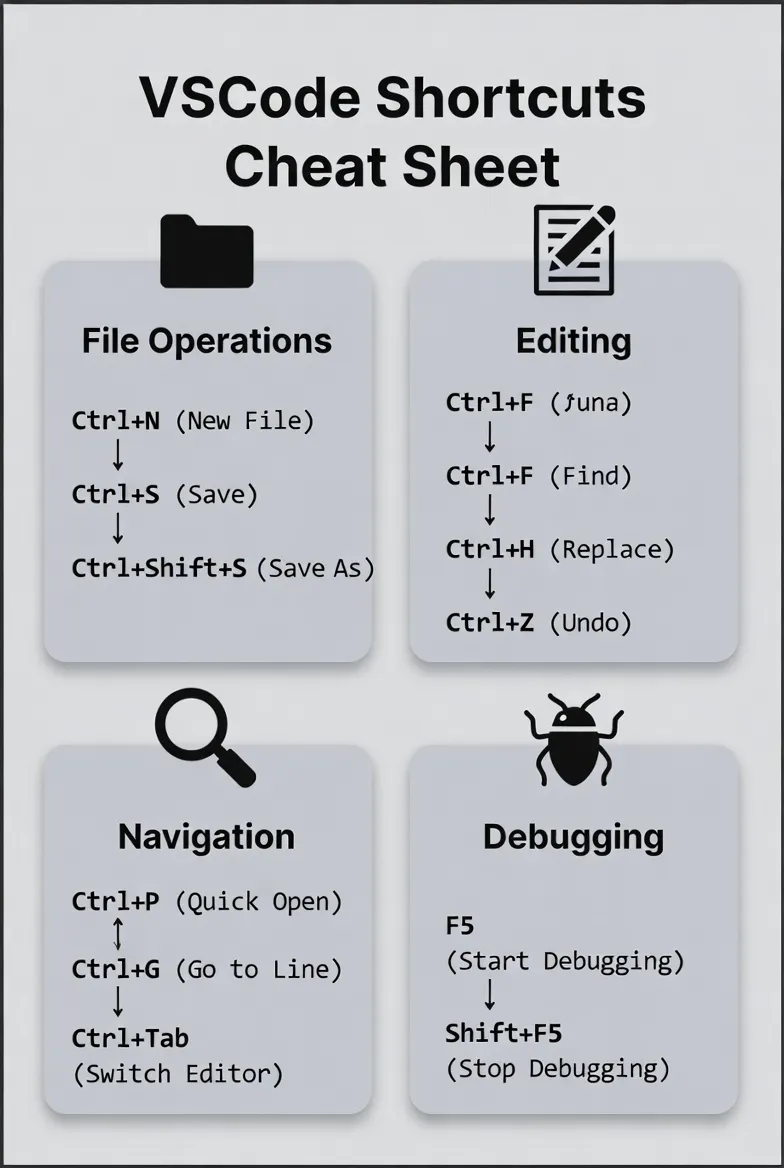
Don't try to memorize 100+ shortcuts at once. I recommend this gradual approach:
📅 Week 1: Basic Navigation
- Ctrl+P (Quick Open)
- Ctrl+G (Go to Line)
- Ctrl+Tab (Next File)
📅 Week 2: Editing Master
- Ctrl+D (Select Next Match)
- Alt+↑↓ (Move Line)
- Ctrl+/ (Toggle Comment)
📅 Week 3: Advanced Features
- F12 (Go to Definition)
- F2 (Rename)
- Ctrl+` (Terminal)
📅 Week 4: Mastery
- Remaining shortcuts
- Custom shortcuts
- Keyboard macros
VSCode continues to evolve. As of November 2025, Copilot integration has been further enhanced, and AI-based code completion becomes even more powerful when combined with shortcuts. Accept Copilot suggestions with Tab and check alternatives with Ctrl+Enter.
💡 A Word from the Developer Community
"At first, learning shortcuts might seem slower. But try them for just two weeks. After that, using the mouse will feel more uncomfortable." — Reddit r/webdev
May these shortcuts greatly help your development journey. Start practicing one by one from today, and build a more efficient and enjoyable coding life! 🚀