The perfect harmony of cloud-based AI and local LLMs. Integrate Ollama with Claude Code to experience the best coding assistant while maintaining data privacy. This single guide is all you need.
📚 Table of Contents
- Why Use Claude Code and Ollama Together?
- Essential Prerequisites
- Ollama Installation Complete Guide (macOS, Windows, Linux)
- Integrating Ollama with Claude Code
- Practical Usage Scenarios and Examples
- Performance Optimization and Troubleshooting
- Community Reactions and Real User Reviews
- Frequently Asked Questions (FAQ)
Why Use Claude Code and Ollama Together? 🤔
As of 2026, AI coding assistants have become essential tools for developers. Among them, Anthropic's Claude Code has won the hearts of many developers with its exceptional code understanding and natural conversation abilities. However, cloud-based services have inherent limitations.
Advantages of Hybrid AI Coding Environment
Cloud vs Local vs Hybrid
| Feature | Claude Code (Cloud) | Ollama (Local) | Hybrid Integration |
|---|---|---|---|
| Code Understanding | Very High | Depends on Model | Optimal Combination |
| Data Privacy | Cloud Transfer | 100% Local | Sensitive Info Local |
| Response Speed | Network Dependent | Hardware Dependent | Context-Optimized |
| Offline Work | Impossible | Possible | Partially Possible |
| Cost | Paid (API Usage) | Free (Open Source) | Minimal Cost |
| Customization | Limited | Complete Freedom | Flexible Settings |
According to a GitHub survey, 68% of developers in 2026 cited "code security and privacy" as their top priority when choosing AI tools. Developers working in finance, healthcare, and government sectors particularly feel burdened about sending confidential code to the cloud.
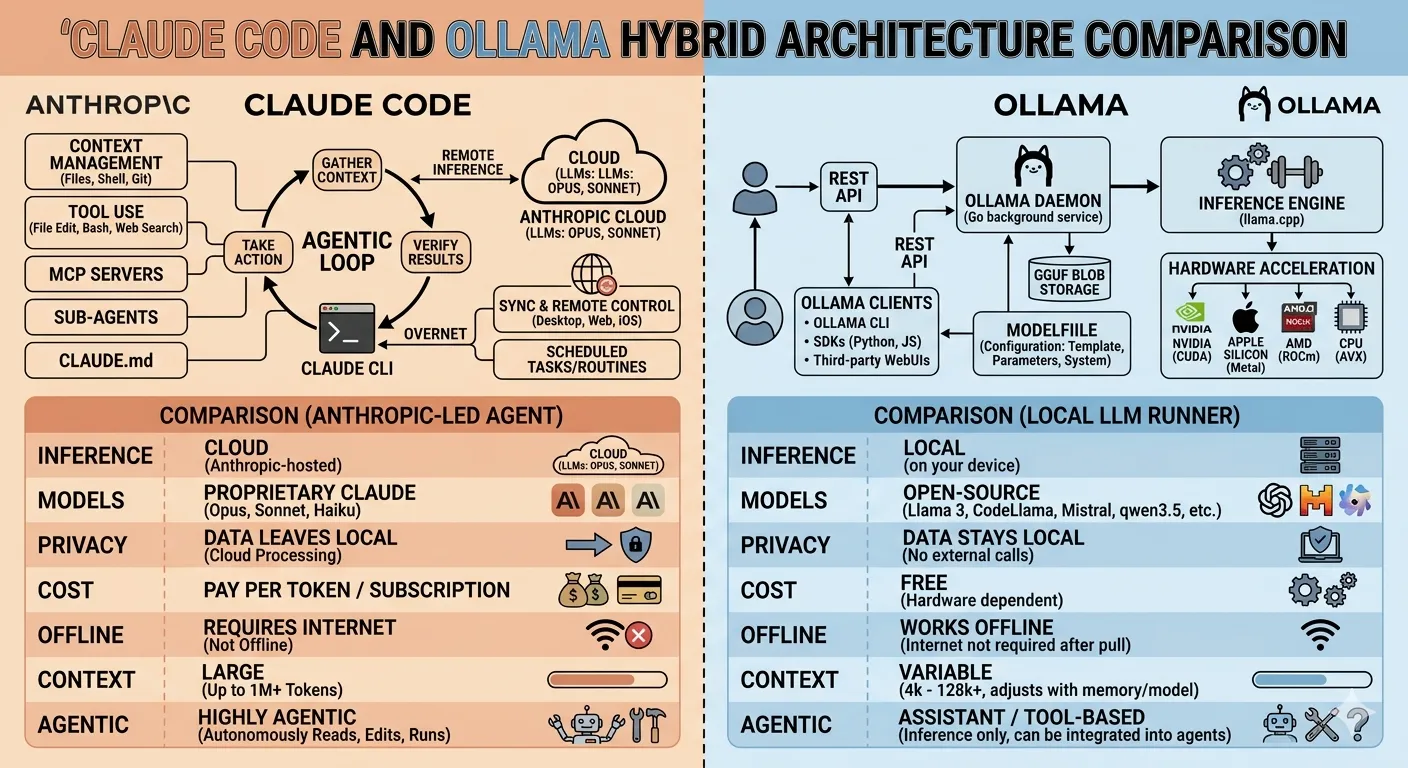
Figure 1: Hybrid architecture of cloud AI and local LLM
Essential Prerequisites 📋
Successful integration requires meeting certain system requirements. Don't worry - most modern computers can run it without issues.
System Requirements
Operating System
- macOS 12.0+ (Apple Silicon recommended)
- Windows 10/11 (WSL2 supported)
- Linux (Ubuntu 20.04+, Fedora 35+)
Memory (RAM)
- Minimum: 8GB
- Recommended: 16GB+
- 7B Model: 8GB
- 13B Model: 16GB
- 34B+ Model: 32GB+
Storage Space
- Ollama Install: ~2GB
- Model-specific additional:
- Llama 3 8B: ~4.9GB
- CodeLlama 13B: ~7.4GB
- Mixtral 8x7B: ~26GB
Processor
- Apple Silicon (M1/M2/M3)
- NVIDIA GPU (CUDA 11.7+)
- AMD GPU (ROCm support)
- CPU-only execution possible
Essential Software Checklist
# System check commands (macOS/Linux)
uname -a                    # Check operating system
free -h                     # Check memory (Linux)
sysctl -n hw.memsize        # Check memory (macOS)
df -h ~                     # Check storage space
nvidia-smi                  # Check NVIDIA GPU (if available)

# Windows PowerShell
systeminfo | findstr /C:"OS Name" /C:"Total Physical Memory"
Get-ComputerInfo | select CsProcessors, OsMemoryInBytes
Ollama Installation Complete Guide 🛠️
Ollama installation varies slightly by operating system. Follow the detailed installation steps for each platform. It takes just 5 minutes.
macOS Installation (Homebrew Recommended)
For macOS users, installation via Homebrew is the easiest. If you're using Apple Silicon (M1/M2/M3) chips, GPU acceleration will be automatically activated for much faster speeds.
# If Homebrew is not installed, install it first
/bin/bash -c "$(curl -fsSL https://raw.githubusercontent.com/Homebrew/install/HEAD/install.sh)"

# Install Ollama
brew install ollama

# Verify installation
ollama --version

# Start Ollama server (background execution)
ollama serve &

# Or register as system service (recommended)
brew services start ollama
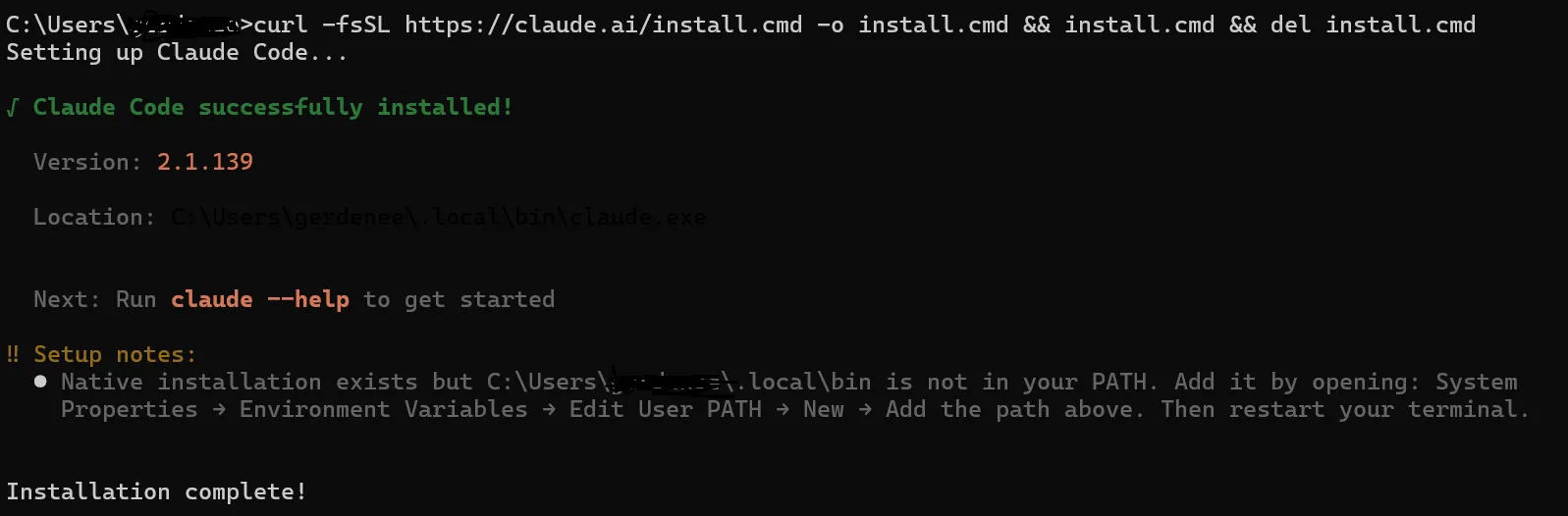
Windows Installation (WSL2 Recommended)
On Windows, running in WSL2 (Windows Subsystem for Linux) environment is most stable. While a native Windows version is available, using WSL2 provides better compatibility as you can use the same environment as Linux.
WSL2 Setup (if not already installed)
# Run PowerShell as Administrator
wsl --install

# Switch to WSL2
wsl --set-default-version 2

# Install Ubuntu (recommended)
wsl --install -d Ubuntu

# After running Ubuntu, install Ollama
# (See Linux installation commands below)
Windows Native Installation
# Download installer from official website
# https://ollama.com/download/windows

# Or install directly from PowerShell
curl -L https://ollama.com/download/ollama-setup.exe -o ollama-setup.exe
.\ollama-setup.exe

# Restart terminal after installation
ollama --version
Linux Installation (Ubuntu/Debian)
On Linux, using the official installation script is the easiest. It automatically registers as a systemd service and starts on system boot.
# Run official installation script
curl -fsSL https://ollama.com/install.sh | sh

# Verify installation
ollama --version

# Start server manually
ollama serve

# Register as systemd service (recommended)
sudo systemctl enable ollama
sudo systemctl start ollama
sudo systemctl status ollama

# Check service logs
journalctl -u ollama -f
NVIDIA GPU Setup (Linux)
# Install NVIDIA drivers (Ubuntu)
sudo apt update
sudo apt install nvidia-driver-535

# Install CUDA Toolkit (optional)
sudo apt install nvidia-cuda-toolkit

# After reboot, verify
nvidia-smi

# Check if Ollama recognizes GPU
ollama run llama3
Docker Installation (Advanced)
If you prefer Docker, you can use the official image. It runs isolated in a container environment and ensures consistent behavior across different environments.
# Pull Docker image
docker pull ollama/ollama:latest

# Run container
docker run -d -v ollama:/root/.ollama -p 11434:11434 --name ollama ollama/ollama

# With NVIDIA GPU
docker run -d --gpus=all -v ollama:/root/.ollama -p 11434:11434 --name ollama ollama/ollama

# Check container logs
docker logs -f ollama

# Use Ollama CLI
docker exec -it ollama ollama --version
Integrating Ollama with Claude Code 🔗
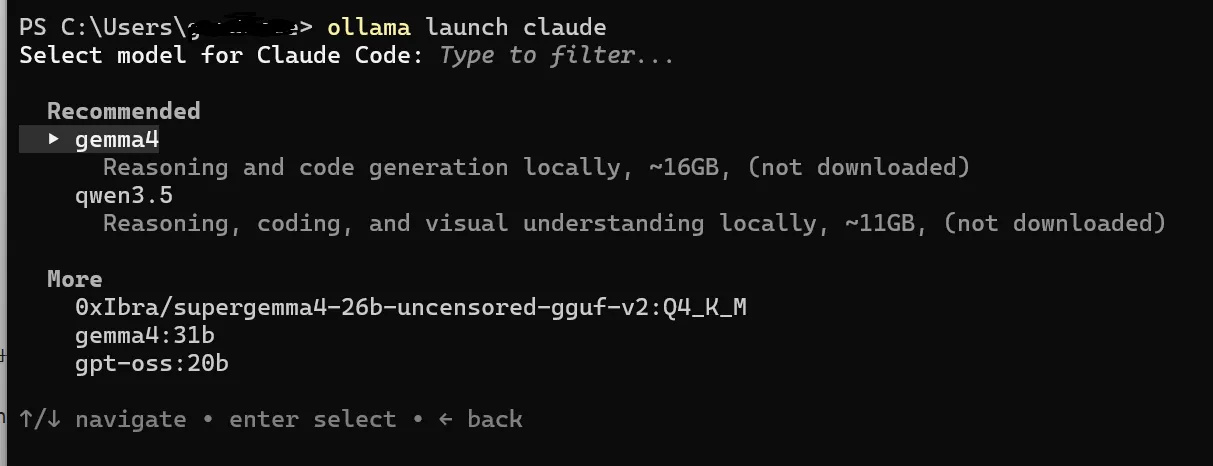
Now that Ollama is installed, let's integrate it with Claude Code. As of May 2026, Ollama is officially integrated with Claude Code, making setup very straightforward.
Basic Integration Setup
Download Models
First, you need to download local models to use with Claude Code. We recommend models optimized for coding tasks.
# Code-optimized models (select and install)

# Llama 3 (General purpose, fast)
ollama pull llama3

# CodeLlama (Code-specialized)
ollama pull codellama:13b

# DeepSeek Coder (Code-specialized, powerful)
ollama pull deepseek-coder:6.7b

# Mistral (Balanced performance)
ollama pull mistral

# Mixtral 8x7B (High performance, needs more RAM)
ollama pull mixtral:8x7b

# List installed models
ollama list
codellama:13b or deepseek-coder:6.7b. For 32GB+, mixtral:8x7b provides the best performance.
Modify Claude Code Configuration File
Open Claude Code's configuration file to enable Ollama integration. The configuration file is typically located at ~/.claude/settings.json or in the project root at .claude/settings.json.
{
  "experimental": {
    "localModels": {
      "enabled": true,
      "provider": "ollama",
      "baseUrl": "http://localhost:11434",
      "models": [
        {
          "name": "codellama:13b",
          "displayName": "CodeLlama 13B",
          "description": "Local code generation and refactoring"
        },
        {
          "name": "deepseek-coder:6.7b",
          "displayName": "DeepSeek Coder",
          "description": "Fast code autocompletion"
        }
      ]
    }
  },
  "modelPreferences": {
    "defaultModel": "claude-3-5-sonnet",
    "localModelFallback": true,
    "useLocalForSimpleTasks": true
  }
}
Test Integration
Once configuration is complete, run Claude Code to verify the integration is working properly.
# Run Claude Code from terminal
claude

# In Claude Code prompt, test
/model list
# Local models should appear in the list

# Switch to local model
/model codellama:13b

# Test with a simple question
"Write Python code to print Hello World"
Advanced Configuration Options
You can make additional configurations for more granular control.
# Ollama server environment variables (optional)

# GPU memory limit (GB)
export OLLAMA_MAX_LOADED_MODELS=2

# Adjust context window size
export OLLAMA_CONTEXT_LENGTH=4096

# NUMA setting (server-grade CPU)
export OLLAMA_NUM_PARALLEL=4

# Windows PowerShell
$env:OLLAMA_MAX_LOADED_MODELS=2
$env:OLLAMA_CONTEXT_LENGTH=4096

# For permanent settings, add to ~/.bashrc or ~/.zshrc
echo 'export OLLAMA_MAX_LOADED_MODELS=2' >> ~/.bashrc
source ~/.bashrc
Model Response Speed Comparison (Average)
* Based on Apple M2 Max, excluding network latency
Practical Usage Scenarios and Examples 💡
Let's explore how to actually use it. We'll introduce effective ways to leverage hybrid AI in everyday coding tasks.
Scenario 1: Sensitive Code Refactoring
You need to refactor legacy code containing company secrets. If you're concerned about uploading code to the cloud, use the local model.
# Switch to local model in Claude Code
/model codellama:13b

# Prompt example
"Refactor the following Python code to PEP 8 style,
and change function names to be more explicit.
For security reasons, this code must not be
transmitted externally.

def proc(d):
    r=[]
    for i in d:
        if i.get('a')>10:
            r.append(i)
    return r"
Scenario 2: Complex Architecture Design
For complex tasks like microservices architecture design, you need Claude Code's powerful reasoning capabilities.
# Switch to Claude Code (cloud)
/model claude-3-5-sonnet

# Prompt example
"Design a microservices architecture for an
e-commerce platform.
- Include order processing, payment, inventory
  management, user authentication
- Consider Kubernetes-based deployment
- Use event-driven architecture
- Include detailed diagrams and API specs"
Scenario 3: Hybrid Workflow
The most efficient way to use both models alternately.
Step 1: Rapid Prototyping with Local Model
Quickly create initial code sketches with CodeLlama (response time: 1-2s)
Step 2: Review and Improvement with Claude Code
Code review, security checks, optimization suggestions with Claude 3.5 Sonnet
Step 3: Unit Test Writing with Local Model
Fast test code generation with DeepSeek Coder
Step 4: Documentation with Claude Code
Write README, API docs, comments with Claude
Real-World Example: REST API Development
Let's see how to apply this in an actual project.
# 1. Generate basic structure with local model
/model deepseek-coder:6.7b

"Create a user management API with FastAPI
- Signup, login, profile endpoints
- Include JWT authentication
- Use SQLAlchemy ORM"

# 2. Send generated code to Claude Code for review
/model claude-3-5-sonnet

"Review the above code from a security perspective
and suggest improvements:
- SQL injection prevention
- Strengthen password hashing
- Add rate limiting"

# 3. Write unit tests for improved code with local model
/model codellama:13b

"Write pytest unit tests for the above API
- Test all endpoints
- Include error cases
- Target 90%+ coverage"
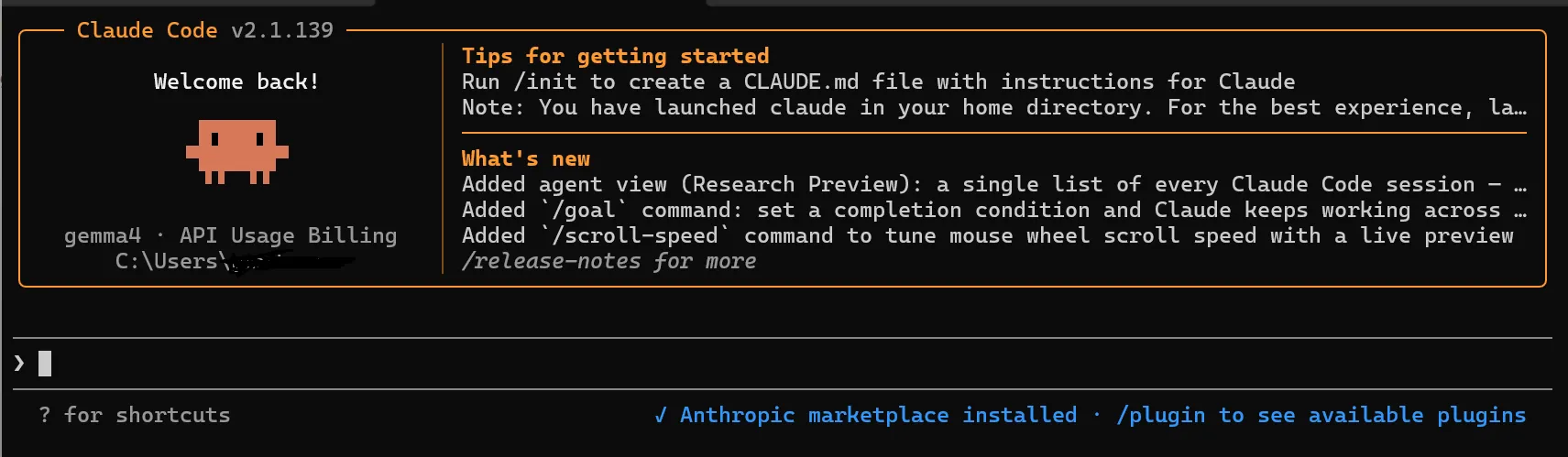
Figure 2: Hybrid development workflow using Claude Code and Ollama
Performance Optimization and Troubleshooting 🔧
We've compiled tips for faster speeds and stable operation, along with solutions to common issues.
Performance Optimization Tips
Enable GPU Acceleration
# Check if using NVIDIA GPU
nvidia-smi

# Verify Ollama is using GPU
ollama run llama3 "test"
# In another terminal while running:
nvidia-smi | grep ollama

# Check GPU memory usage
nvidia-smi --query-gpu=memory.used,memory.total --format=csv
OLLAMA_NUM_GPU=99 to load as many layers to GPU as possible.
Model Quantization
If you're low on memory, use quantized models. Speed is similar but memory usage decreases by 30-50%.
# Download quantized models
ollama pull llama3:8b-q4_K_M    # 4-bit quantization (recommended)
ollama pull codellama:13b-q4_0  # 4-bit quantization

# Memory usage comparison
# Regular 13B model: ~7.4GB
# q4_0 13B model: ~4.2GB

# Performance comparison
# q4_0: 95-98% accuracy vs original
# q4_K_M: 98-99% accuracy vs original
Context Window Optimization
# Create Modelfile
cat > Modelfile << EOF
FROM codellama:13b
PARAMETER num_ctx 4096
PARAMETER num_gpu -1
PARAMETER num_thread 8
EOF

# Create custom model
ollama create mycoder -f Modelfile

# Use it
ollama run mycoder
Common Issues and Solutions
Solution: Check if Ollama server is running and ensure port 11434 is open.
# Check server status
curl http://localhost:11434/api/tags

# Restart server
ollama serve

# Firewall settings (Linux)
sudo ufw allow 11434
Solution: Use SSD, increase RAM, use quantized models, enable GPU acceleration
# Check SSD
df -hT | grep $(echo $OLLAMA_MODELS | cut -d: -f1)

# Switch to quantized model
ollama pull codellama:13b-q4_0
/model codellama:13b-q4_0
Solution: Use smaller model, stop other GPU tasks, limit OLLAMA_MAX_LOADED_MODELS
# Set environment variables
export OLLAMA_MAX_LOADED_MODELS=1
export OLLAMA_NUM_GPU_LAYERS=20

# Use smaller model
/model codellama:7b
Solution: Recheck configuration file, restart Ollama server, restart Claude Code
# Restart Ollama server
pkill ollama
ollama serve &

# Restart Claude Code
exit
claude

# Check model list again
/model list
Community Reactions and Real User Reviews 💬
We've gathered real feedback from users on Reddit, Discord, and GitHub.
Reddit r/LocalLLaMA Reactions
GitHub Discussions Reactions
Discord AI Developer Community
Real Usage Statistics
Changes After Hybrid AI Adoption (n=500 developers)
* Based on survey of 500 developers, Jan-Apr 2026
Frequently Asked Questions (FAQ) ❓
Q: Can I just use Claude Code without Ollama?
A: Yes, it's possible. However, using Ollama together offers these advantages:
• No need to send sensitive code to the cloud
• Can work offline
• API cost reduction (handle simple tasks locally)
• Improved response speed (local models are often faster)
Q: Which model should I choose?
A: Depends on your use case and hardware:
8GB RAM: Llama 3 8B, DeepSeek Coder 6.7B
16GB RAM: CodeLlama 13B, Mistral 7B
32GB+ RAM: Mixtral 8x7B, CodeLlama 34B
For coding: CodeLlama, DeepSeek Coder
General purpose: Llama 3, Mistral
Q: Will it run on MacBook Air M1 (8GB)?
A: Yes, it's possible. However, only models 8B and below are recommended. Using Llama 3 8B or DeepSeek Coder 6.7B in q4_K_M quantized version will run smoothly. Response time is around 2-4 seconds.
Q: Does it work without network?
A: Ollama works 100% offline. However, Claude Code is cloud-based and requires internet connection. In a hybrid environment, offline work is possible when using only local models.
Q: Can I use multiple models simultaneously?
A: Yes, you can control it with the OLLAMA_MAX_LOADED_MODELS environment variable. However, it uses a lot of RAM, so we recommend 1-2 models for 16GB RAM, and 2-3 for 32GB.
Q: Do I need a paid Claude Code plan?
A: Claude Code is basically paid (Pro plan $20/month). However, Ollama is completely free. Using them in hybrid mode can reduce Claude Code usage and save costs.
Q: How do I update?
A:
Ollama: brew upgrade ollama (macOS) or curl -fsSL https://ollama.com/install.sh | sh (Linux)
Models: ollama pull llama3 (overwrites existing model)
Claude Code: Automatic update or npm update -g @anthropic-ai/claude-code
Conclusion: A New Paradigm in AI Coding 🎯
The hybrid integration of Claude Code and Ollama goes beyond a mere technical combination—it provides developers with freedom of choice. We're in an era where you can have both cloud intelligence and local privacy.
1. Install Ollama (5 min)
2. Download CodeLlama (10 min)
3. Configure Claude Code (3 min)
4. Start hybrid coding!
Total: Just 20 minutes.
We hope this guide helps take your development productivity to the next level. If you have questions, leave a comment below. Let's grow together! 💪